A work planner only helps if it fits the way your week actually runs: full of meetings, interrupted by email, and planned on Monday before it falls apart on Tuesday. I built the 2027 Professional Planner for exactly that week. This spotlight shows what's inside, who it's for, and 12 practical ways to use a work planner through 2027, with real pages from the planner. Most of the ideas work in any planner, paper or digital.
Get the 2027 Professional Planner on Etsy. It's an instant download for iPad, with every workday from November 2, 2026 already dated.
A personal planner is built around appointments and to-do lists. A work planner is built around the things that make work hard to plan: meetings that eat the day, promises you make in those meetings, deadlines that belong to other people, and a few outcomes that matter far more than everything else on the list.
So instead of a blank box for each day, a good work planner asks a few questions: what's the one outcome today, what's already fixed in the calendar, what did I promise and to whom, and where do I restart after an interruption.
What's inside the 2027 Professional Planner
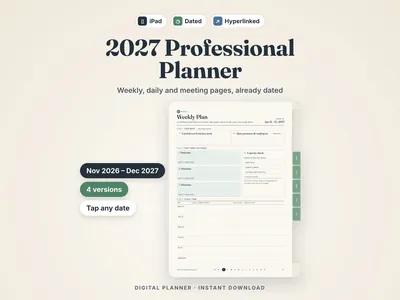
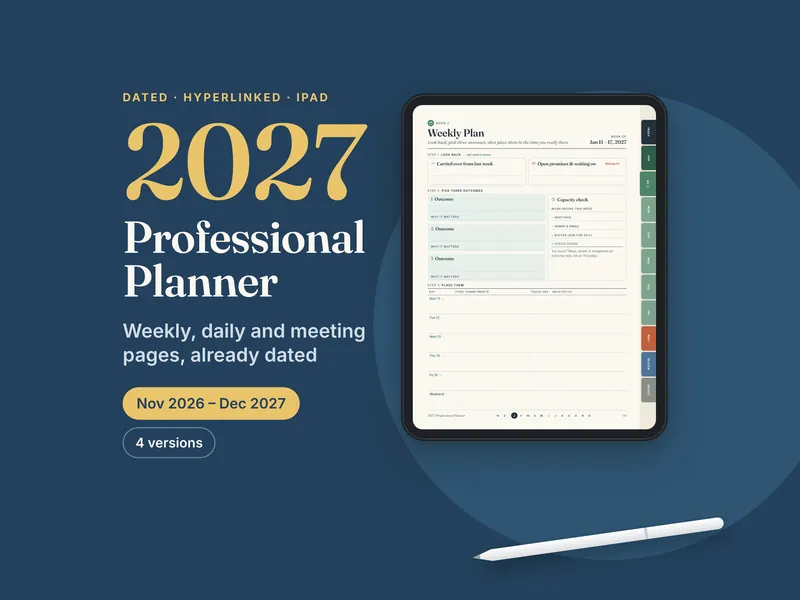
It's one dated, hyperlinked PDF of 618 pages for iPad, running from November 2, 2026 to December 31, 2027, so you can start today. It opens in GoodNotes, Notability, Noteshelf, Noteful and other PDF apps that support links.
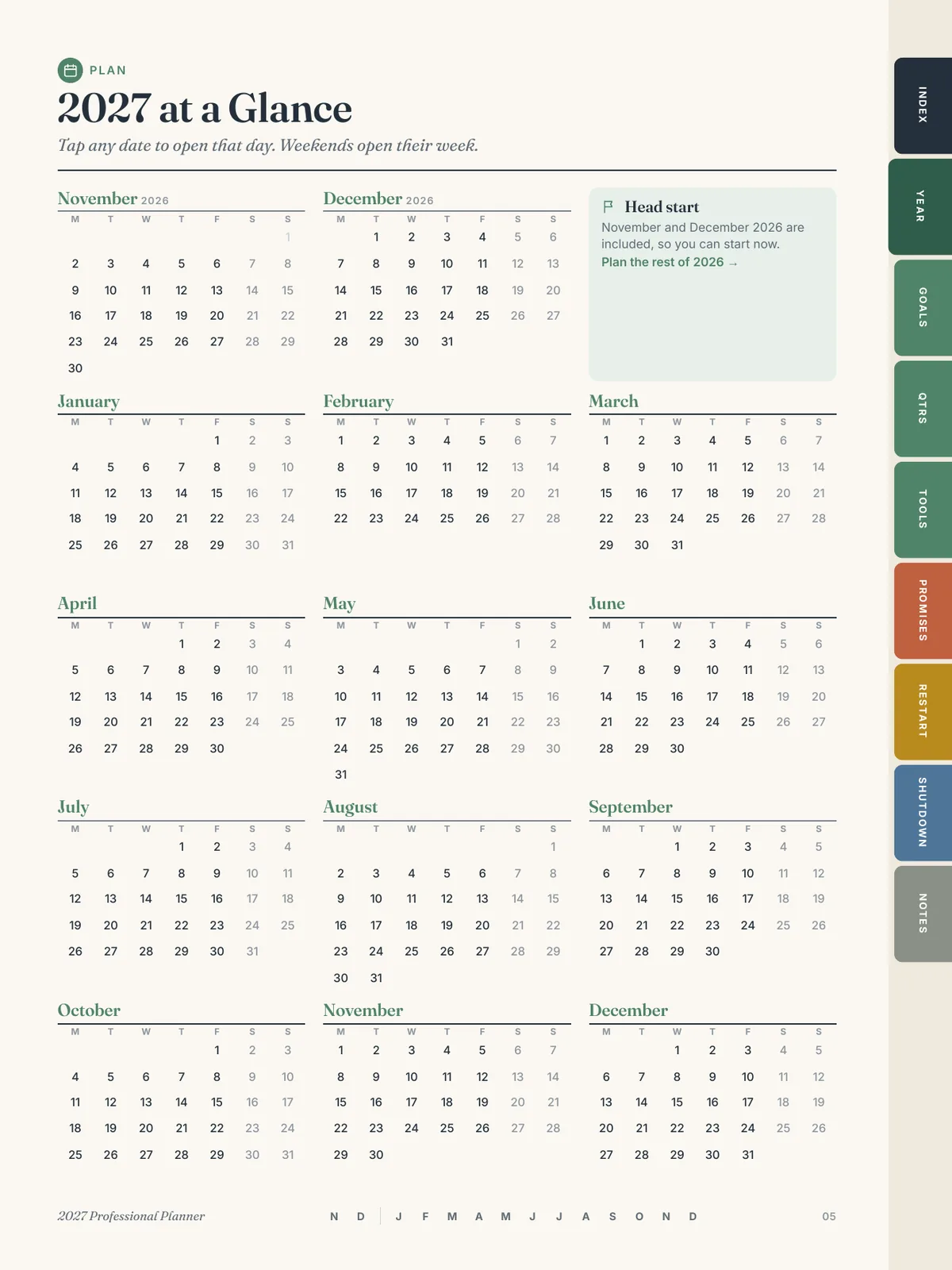
Plan the year: 2027 at a Glance (every date links to its day), 2027 on One Page with three work outcomes, a Head Start page for the rest of 2026, Q1 to Q4 plans with milestones, Key Dates & Deadlines and a Time Off Planner with a handoff checklist.
Every month: a dated Monthly Plan with three outcomes and deadlines, and a Month Review.
Every week (61 weeks): a Weekly Plan with three outcomes and a capacity check, a Daily Focus page for each weekday, two Meeting Capture pages and a Weekly Review.
Toolkit: Work Brain Dump, Task Triage, Project Next Steps, 1:1 & Recurring Meeting, Follow-Through List, Waiting On, Midday Reset, Workday Shutdown and more, with two filled-in examples.
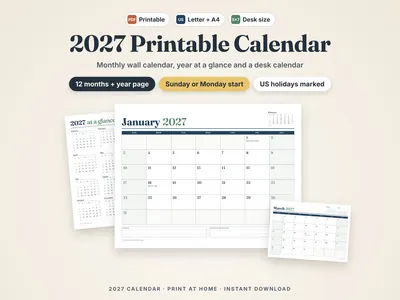
Bonus: 135 workday stickers, and printable year, quarter and month calendars in Letter and A4.
2027 at a Glance: tap any date to open that day.
It comes in four versions of the same planner: portrait, landscape, Sunday start and dark. Side tabs on every page jump to the year, month, week, each day, meetings and review, and a month bar along the bottom takes you anywhere in two taps.
Who it's for (and who it isn't)
Managers, project leads, consultants and anyone whose week runs on meetings.
People who already write by hand on an iPad and want one place for plans, meeting notes and promises.
Anyone who plans well on Monday and loses the thread by Wednesday.
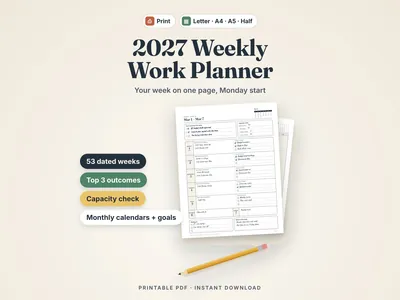
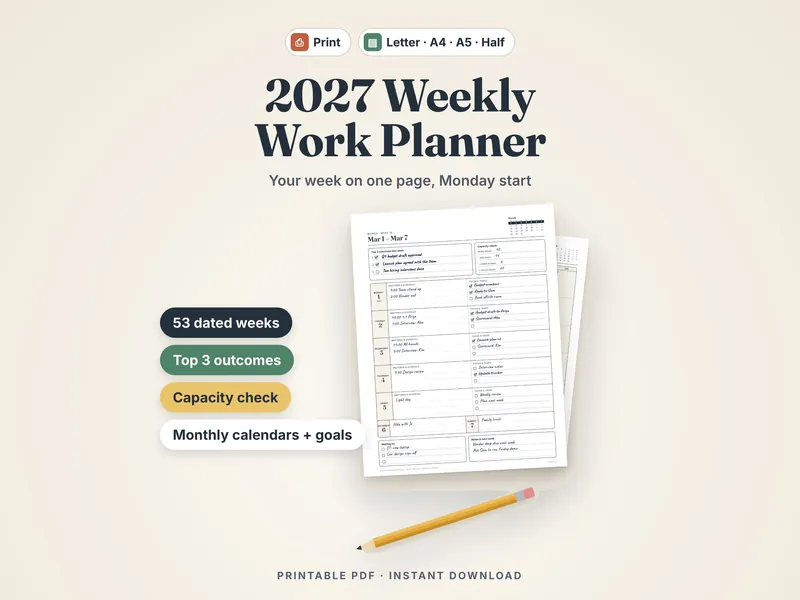
It isn't a calendar app. It won't sync with Outlook or Google Calendar, send reminders or move unfinished tasks forward by itself. That last part is on purpose: nothing carries over unless you decide it should. If you'd rather plan on paper, the 2027 Weekly Work Planner is a printable version of the weekly page.
12 ways to use a 2027 work planner
Here's how the pages fit into a working year, from the first week of planning to the last review in December.
1. Choose three work outcomes for the year
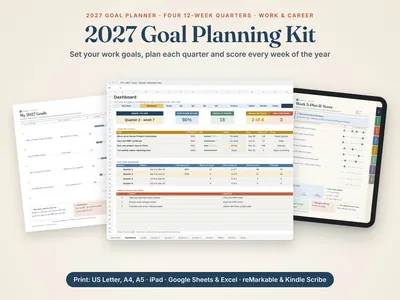
Start on 2027 on One Page. Write the three outcomes that would make the year a success at work, and why each matters. Example: "Retire the old sales spreadsheet by April 30." Everything else in the planner either supports those three or waits. If you need help choosing, our work goals examples for 2027 give you 30 to start from.
2. Use the Head Start page to finish 2026 cleanly
November and December 2026 are already in the planner. The Head Start page asks what you need to finish, hand over or drop before the year ends, so you walk into January with a plan instead of a backlog. Example: "Close the October invoices; hand the vendor review to Sam; book Q1 planning for Jan 6."
3. Break the year into quarters
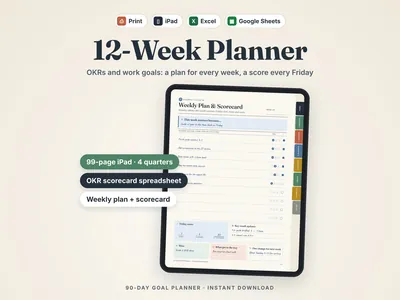
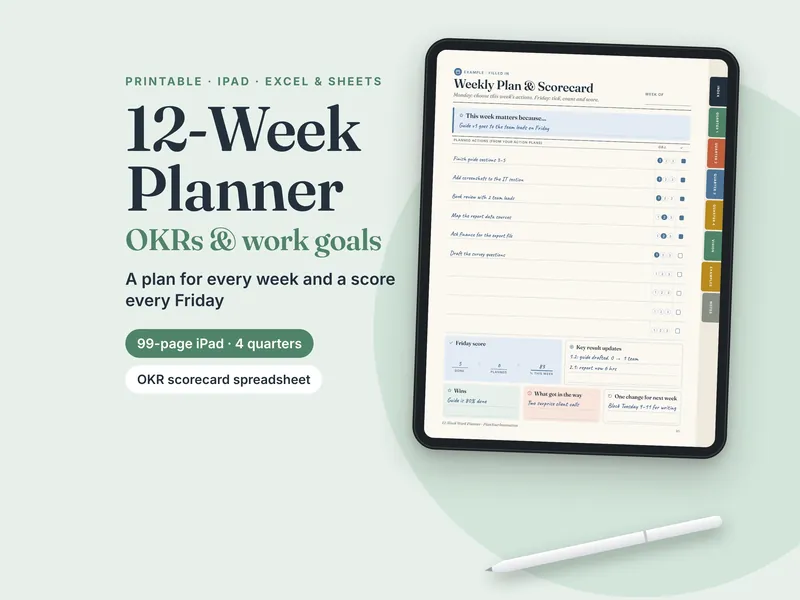
Each quarter page has three outcomes and the milestones that get you there, with a short review at the end. A year is too long to plan in detail; 12 weeks is about right. If you want a full 12-week system with a weekly score, the 12-Week Planner goes deeper.
4. Put every deadline in one place
Key Dates & Deadlines holds anything with a date that isn't a meeting: launches, renewals, review deadlines, budget submissions. Example: "Feb 15: two vendor renewals. Mar 31: self-review due." Tap any date on 2027 at a Glance to open that day.
5. Plan time off with a handoff
The Time Off Planner has a "before I'm out" checklist: who covers what, which deadlines fall while you're away, and the out-of-office message. Filling it in a week early is what lets you actually switch off.
6. Plan the week against the hours you really have
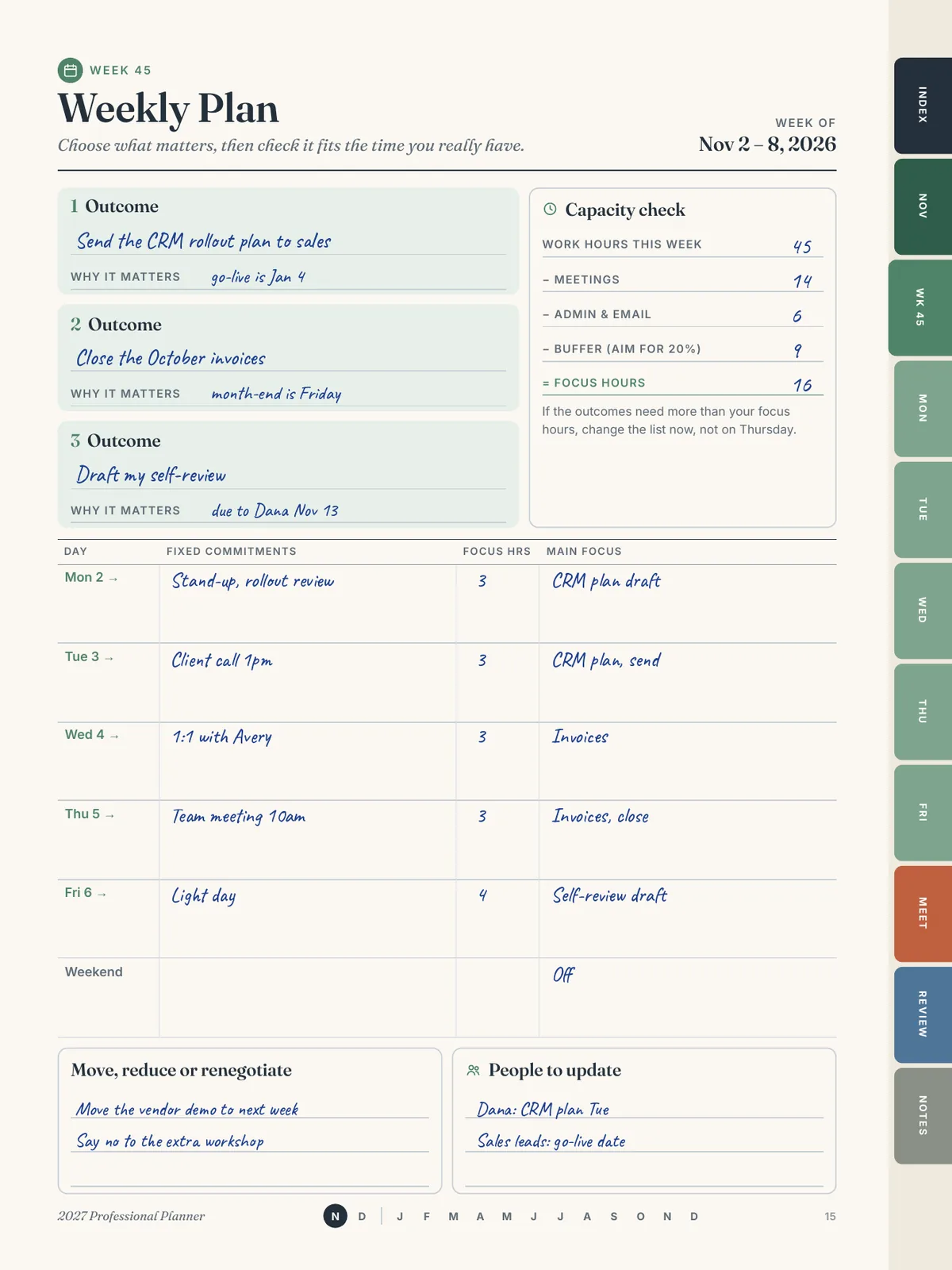
The Weekly Plan starts with three outcomes, then a capacity check: work hours, minus meetings, minus admin and email, minus a buffer. What's left is your focus time. Example: 45 hours minus 14 in meetings, 6 for admin and 9 of buffer leaves 16 focus hours. If the outcomes need more than that, change the list on Monday, not on Thursday.
A Weekly Plan filled in: three outcomes, then a capacity check against the hours you really have.
7. Start each day with one outcome
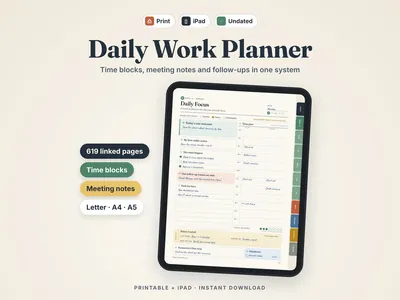
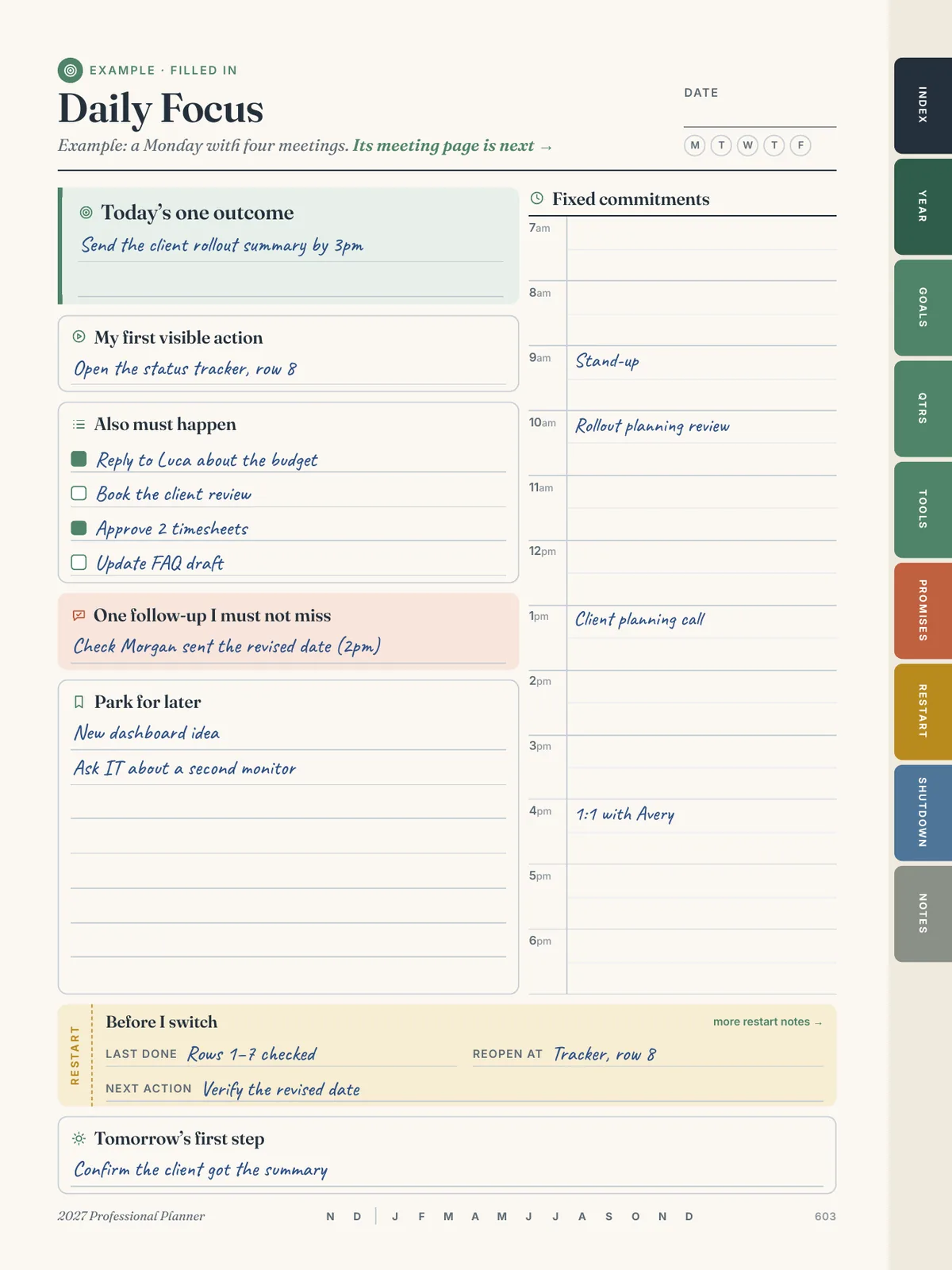
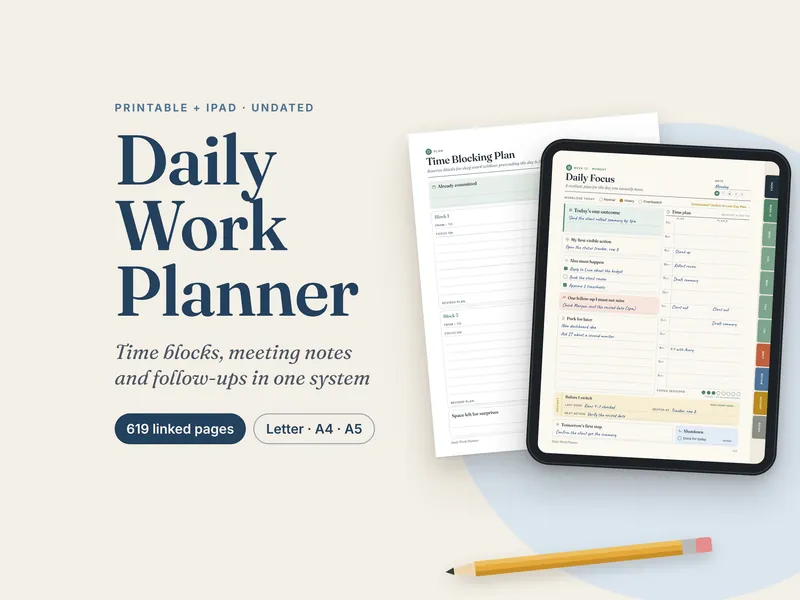
Daily Focus asks for today's one outcome and the first visible action, so you can start in two minutes instead of twenty. Example: "Send the client rollout summary by 3pm. First action: open the status tracker, row 8." Your fixed commitments go in the 7am to 6pm column beside it.
8. Never miss the one follow-up that matters
Each day has a box for one follow-up you must not miss. Example: "Check Morgan sent the revised date (2pm)." It's small, but it's usually the thing that causes trouble next week if it slips.
9. Leave every meeting with promises written down
Each week has two Meeting Capture pages (duplicate them for busy weeks) with notes, decisions and a promises table: what was promised, the owner, the due date and the check-back date. Our guide on how to write meeting action items has 25 examples of clear ones.
10. Restart quickly after an interruption
The restart note at the bottom of each Daily Focus page records what you last finished, where to reopen and the next action. Example: "Last done: rows 1-7 checked. Reopen at: tracker, row 8. Next: verify the revised date." After a two-hour fire drill, you pick up in seconds.
The filled-in Daily Focus example from the planner, including the restart note.
11. Review the week on Friday
The Weekly Review takes ten minutes: what got done, what slipped, the promises still open and what to carry forward. Carry decisions, not a pile of unfinished lists. Missed a week? Tap today's date and start fresh.
12. Write your wins down every month
The Month Review asks for your wins, what slipped and when you focused best. Twelve of those make next December's self-review easy. Our year-end review examples show what to do with them.
What a normal week looks like with the planner
Monday, 15 minutes: Weekly Plan, three outcomes and the capacity check.
Each morning, 2 minutes: Daily Focus, one outcome and the first action.
During meetings: Meeting Capture, with promises in the table.
After an interruption: read the restart note.
Friday, 10 minutes: Weekly Review.
That's about 40 minutes a week. In return, every promise has an owner and a date, your week fits the hours you have, and your self-review is half written by December. Our guide on how to plan your work week explains the weekly routine in more detail, with a free one-page version.
How do you set up a digital work planner?
Download the files from Etsy on a computer or in a web browser, then save them to your iPad.
Pick one version (portrait, landscape, Sunday start or dark) and import it into your note app.
Fill in 2027 on One Page and the Head Start page. Twenty minutes is enough.
Add the deadlines you already know to Key Dates & Deadlines.
Open this week's Weekly Plan from the side tab and do the capacity check.
Tap today's date and write your one outcome on Daily Focus.
Common work planner mistakes
Copying your whole calendar in. The planner is for decisions; the calendar app already holds the meetings. Write only the fixed commitments that shape your day.
Ten priorities a day. One outcome, then a short list of what also must happen.
Skipping the Friday review. It's ten minutes, and it's what stops the same tasks drifting for weeks.
Starting over after a bad week. You don't need to catch up. Tap today and carry forward only what still matters.
Digital or paper: which work planner should you use?
Use a digital planner if you already carry an iPad to meetings: it's one light device, every date is a tap away, and you can duplicate meeting pages whenever you need more. Use paper if you think better with a pen on a desk and don't want another screen. Many people use both: the digital planner for the day and meetings, and a printed year or month calendar on the wall. The printable calendars in the planner's ZIP file cover that.
On a Kindle Scribe? Scribe Smarter puts three Kindle Scribe files in one download: the undated Work Notebook, the dated 2027 work planner and the meeting notes, with Colorsoft and left-handed files included. Use the planner for dates and deadlines, the notebook for the weekly plan and 1:1s, and the meeting notes for every call, so each kind of note has one home you can tap to.
On a reMarkable Paper Pro or Paper Pro Move? The 14-Month Work Planner for reMarkable is a lighter dated option: weekly and monthly pages from November 2026 to December 2027, with a Sunday or Monday start.
What problems does the 2027 Professional Planner solve?
The 2027 Professional Planner is built around the things that make a working week hard to plan. Here's what it fixes:
The problem: your week is planned on Monday and gone by Tuesday. How it helps: the Weekly Plan starts with a capacity check, so your three outcomes fit the hours you really have after meetings.
The problem: promises made in meetings get lost. How it helps: two Meeting Capture pages a week with a promises table: what was promised, the owner, the due date and the check-back date.
The problem: one interruption wipes out the afternoon. How it helps: the restart note on every Daily Focus page records what you last finished, where to reopen and the next action.
The problem: deadlines live in five different places. How it helps: Key Dates & Deadlines and 2027 at a Glance put every dated commitment in one place, one tap from its day.
The problem: time off means a frantic last day. How it helps: the Time Off Planner's handoff checklist covers who covers what and which deadlines fall while you're away.
The problem: December's self-review starts from a blank page. How it helps: twelve Month Reviews of wins and slips mean it's half written before you start.
Want just one part?
If you only need the weekly page, the 2027 Weekly Work Planner prints your three outcomes, capacity check and each day on one sheet, in Letter, A4, A5 and Half Letter. If you're focused on goals, the 12-Week Planner turns them into weekly actions with a Friday score. For the whole working year on your iPad, the 2027 Professional Planner has all of it. See all our 2027 work planners.
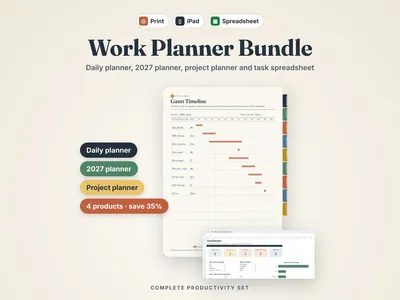
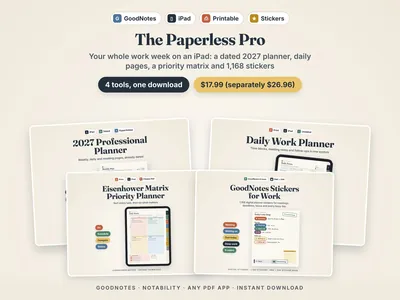
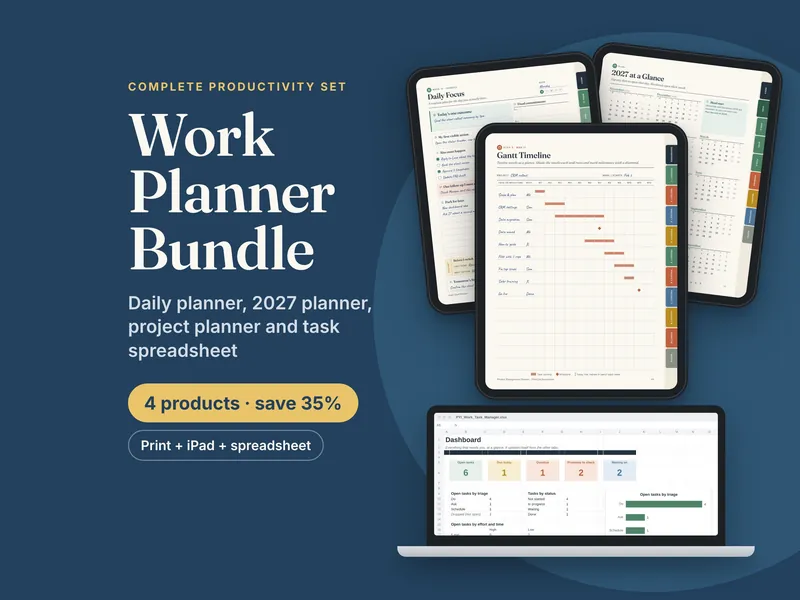
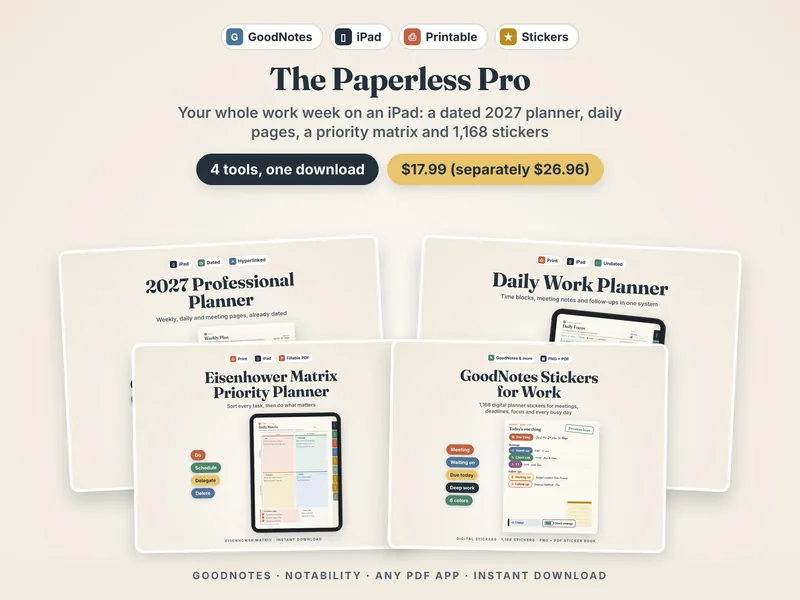
Want more than the planner? The Paperless Pro adds undated daily pages, an Eisenhower matrix and 1,168 work stickers for GoodNotes to the 2027 Professional Planner, in one download.
Free printable
Try the weekly planning habit free
Get my free One-Page Work Week: three outcomes, one row a day and a five-minute Friday review, the weekly habit the 2027 planner is built around.
GoodNotes, Notability, Noteshelf, Noteful and any PDF app that supports links. It's made for iPad. Some apps follow links only in read or view mode.
Can I start using it now?
Yes. It's dated from November 2, 2026, so the rest of this year is included, with a Head Start page to finish 2026.
Which version should I choose?
Portrait suits most people. Pick landscape for a keyboard case, Sunday start if your weeks begin on Sunday, and dark for working at night. Choose one before you start writing, because notes don't move between files.
Can I print it?
The planner is made for tablets, but the ZIP includes printable year, quarter and month calendars in Letter and A4.
How do I get the files?
It's an instant download from my Etsy shop. Download it from Etsy's Purchases page on a computer or web browser, because the Etsy app can't download digital files.

 By