Kindle Scribe templates and planners: how to add a PDF
Just unwrapped one? Try the free sample page below first, then add a work notebook.
The Kindle Scribe's own notebooks come with a fixed set of page styles, so the way to get a real planner or work notebook onto it is a PDF. Send the PDF to your Scribe, keep it as a PDF, and you can write on every page and tap the tabs to jump around. Here's how, step by step.
Works on your device, or I'll fix it or refund you in full.
How to add templates to Kindle Scribe
A Kindle Scribe template is a PDF you write on. The page design is fixed, and you write with the pen on top of it. Hyperlinked PDFs keep their links, so tabs and index numbers take you to the right page. The steps below take about five minutes the first time.
Download the PDF to your computer or phone. Etsy downloads are under Purchases. If the file comes as a zip, unzip it first and pick the Kindle Scribe file.
Send it with Send to Kindle. Use the Send to Kindle page on Amazon's website, the Send to Kindle desktop app, or the Kindle app on your phone (share the PDF to it). You can also email it to your Kindle's Send to Kindle address, which you'll find under Manage Your Content and Devices.
Keep it as a PDF. If you email it, don't type "convert" in the subject line. A converted file turns into a reflowable book: the layout breaks and you can't write on the pages.
Open it on the Scribe. It shows up in your Library, usually within a few minutes. Sync the Scribe if you don't see it yet.
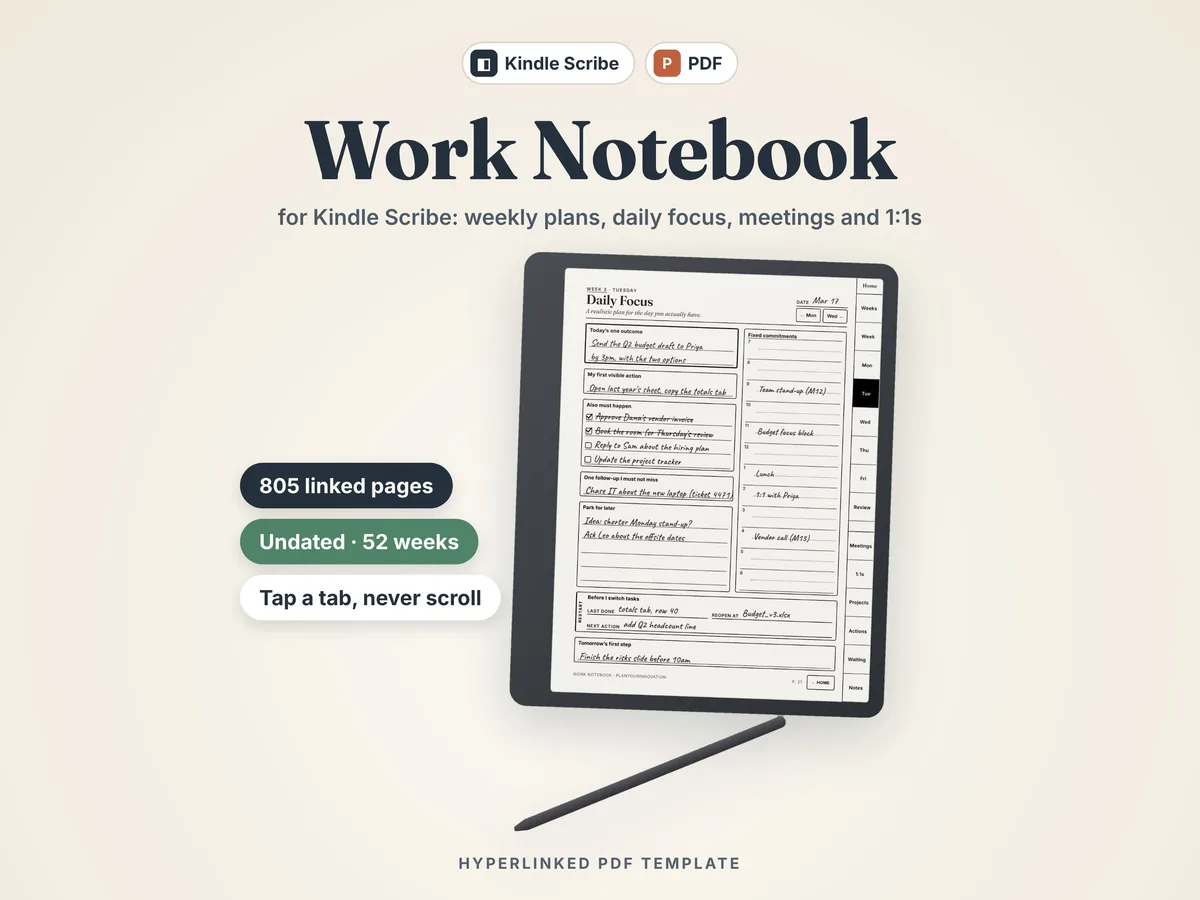
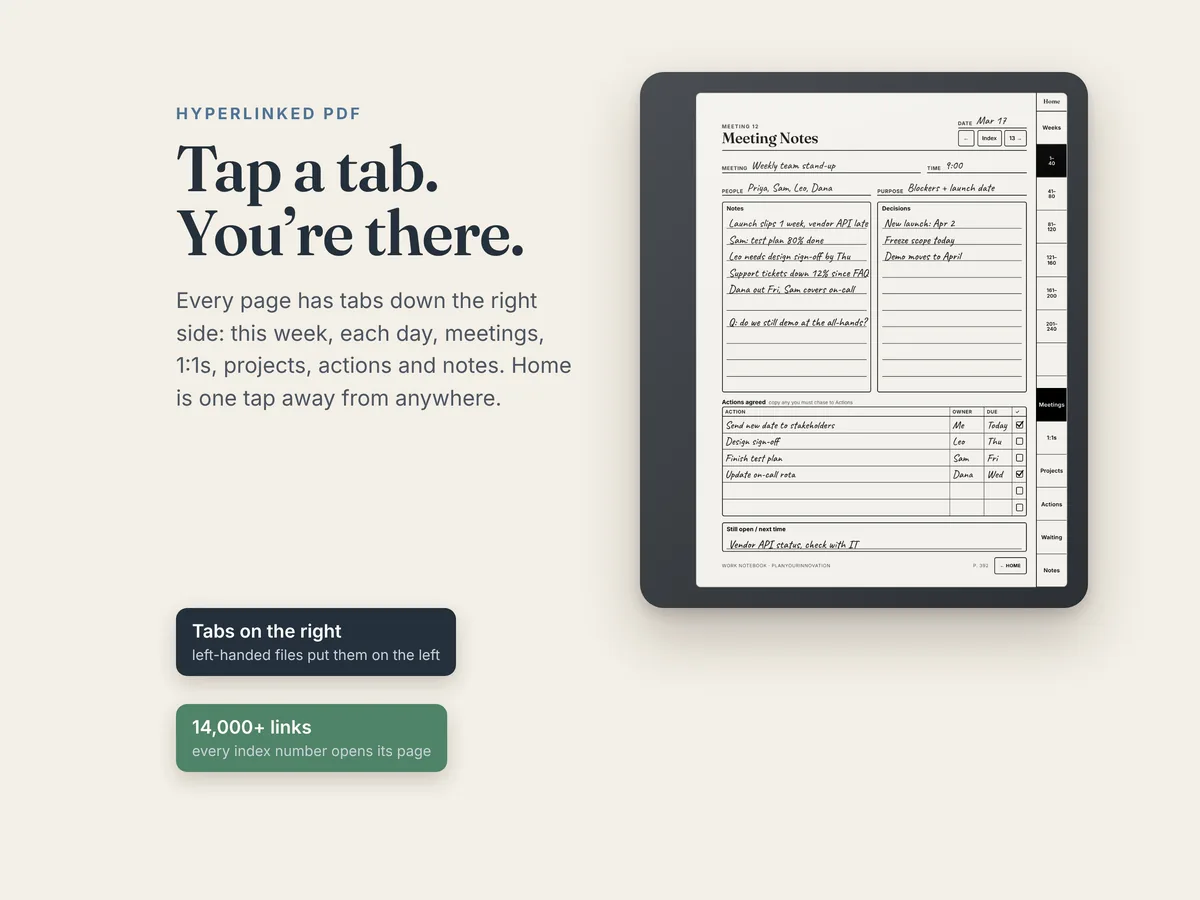
Write and tap. Pick up the pen and write on any page. Tap a tab or a link with your finger to jump. On the Work Notebook, every page has tabs down the right side for this week, each day, meetings, 1:1s, projects and actions.
Keep it backed up. Your handwriting stays with the document on the Scribe, and you can export the annotated notebook from the Kindle when you need a copy.
Every page has tabs down the right side. Tap one with your finger to jump there.
One thing to know before you buy: a PDF planner is a notebook, not a custom page style for the Scribe's built-in notebooks. You can't add blank pages in the middle and have them linked. That's why a good Kindle Scribe planner gives you plenty of pages in each section up front.
What makes a good Kindle Scribe planner
The Scribe has a large 10.2-inch screen and a crisp black-and-white display, so a template made for it should use that space well and stay readable in gray. Look for these four things:
Tabs on every page. Scrolling through a 600-page PDF is slow on e-ink. Tabs and linked indexes make it one tap.
A black-only file. Color layouts can turn to muddy gray. A file drawn for black and white keeps lines sharp.
Enough pages in each section. Since you can't add linked pages later, count the meeting, 1:1 and project pages before you buy.
The right size. The Kindle Scribe file should fill the screen without black bars. A file sized for a phone or an iPad wastes space.
Kindle Scribe templates for work
I make two Kindle Scribe PDFs for the working week. Both are hyperlinked, black-only files sized for the Scribe, and both come with a left-handed edition with the tabs on the left.
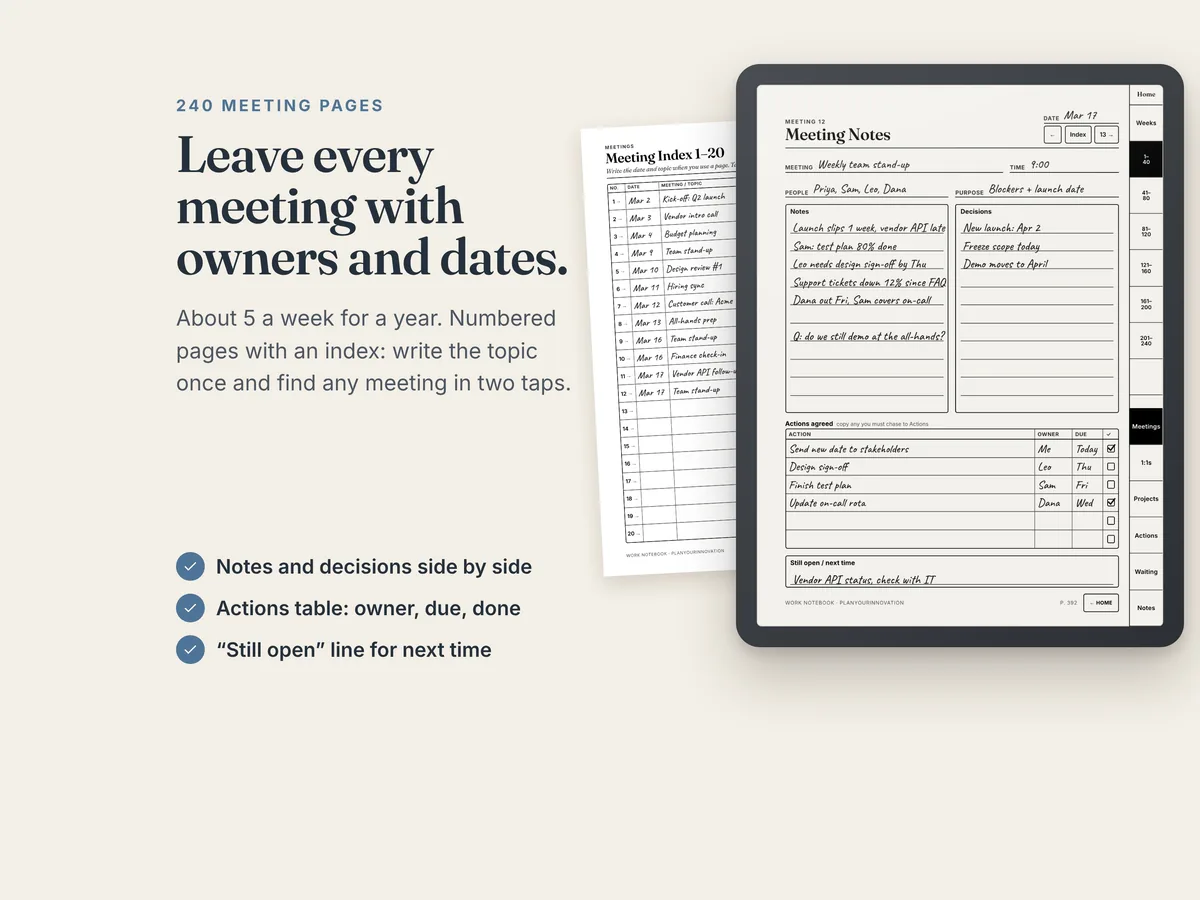
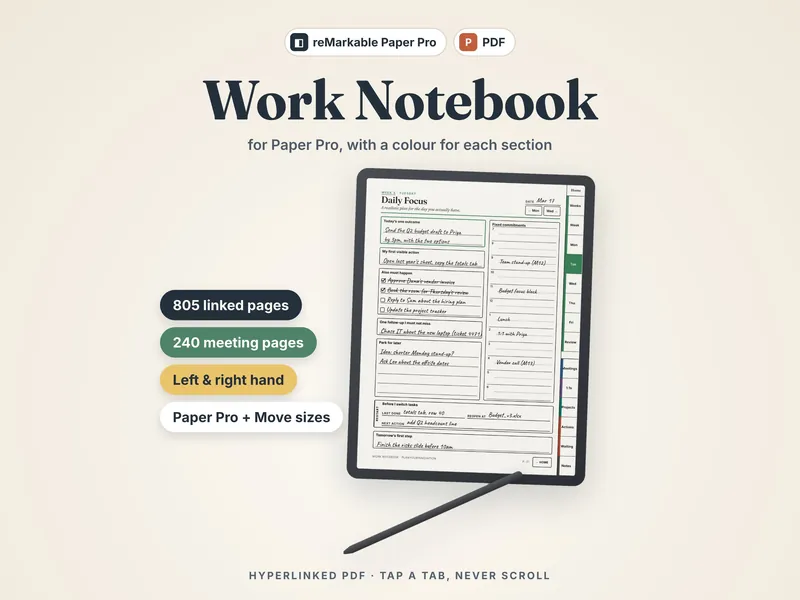
The Work Notebook for Kindle Scribe is undated, so you can start any week. It has 805 linked pages: 52 weeks of a weekly plan, five daily focus pages and a weekly review, 240 meeting pages with a 12-page index, 1:1 pages for 12 people, 20 project spaces, Actions and Waiting On lists and 40 notes pages. It has over 14,000 links.
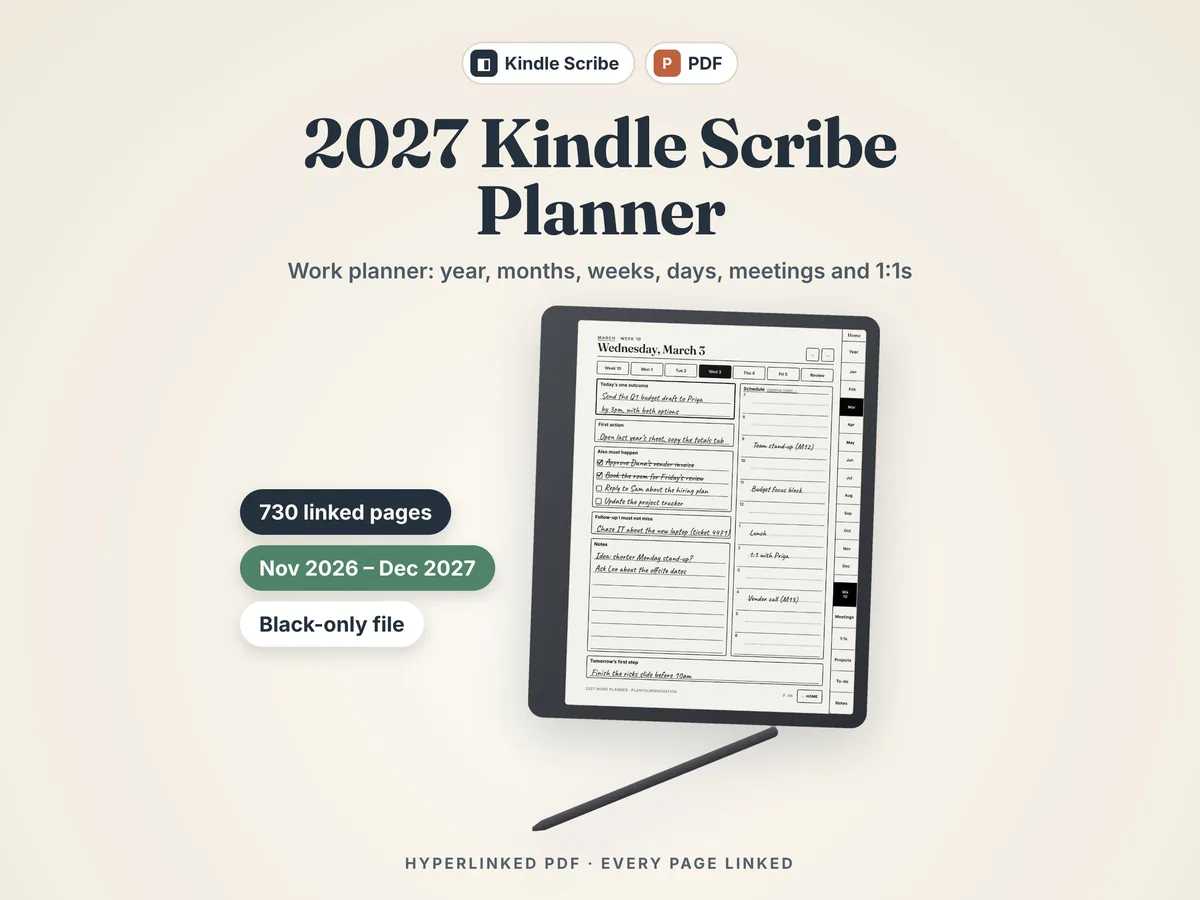
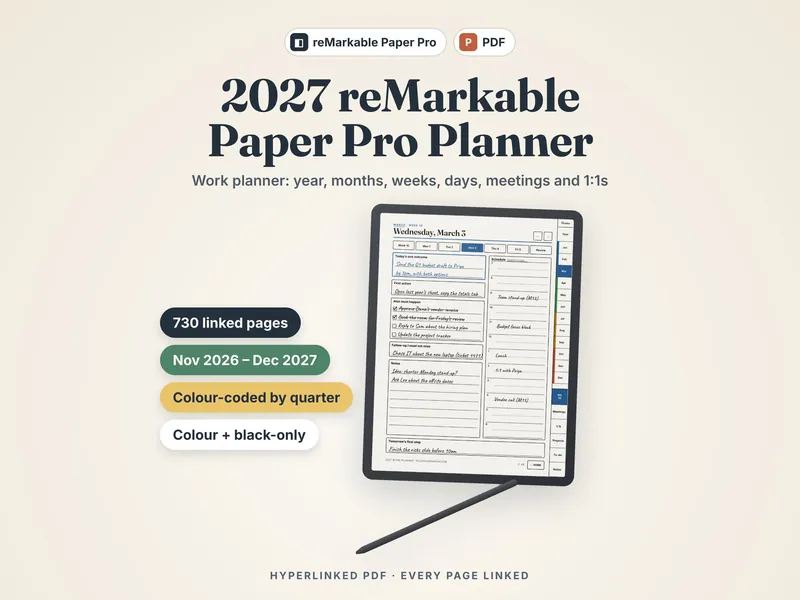
The 2027 Work Planner for Kindle Scribe starts in November 2026, so you can use it today. It has 730 linked pages: start-now pages for November and December 2026, then year, quarter and month plans, 53 weeks of 2027, 265 daily pages, 160 meeting pages, 1:1s for 10 people and 12 projects, with over 20,000 links.
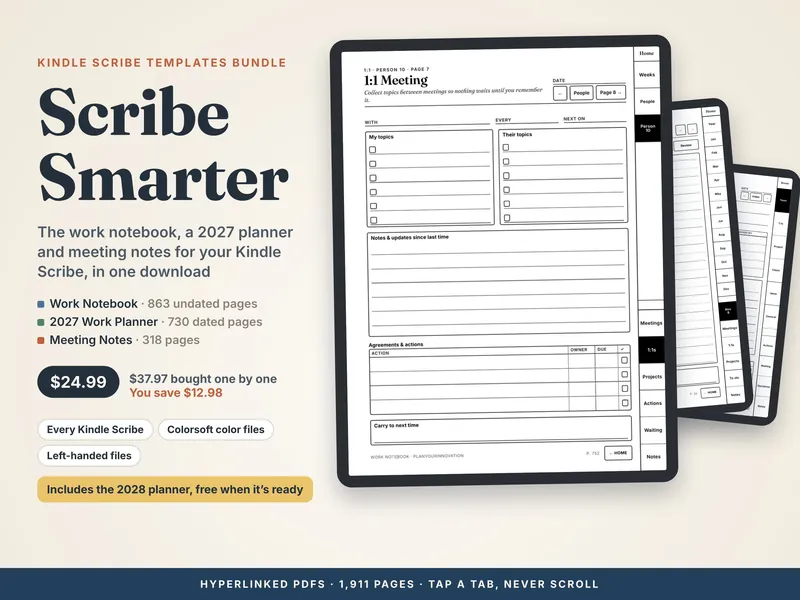
Want all three? Scribe Smarter is the Kindle Scribe bundle: the Work Notebook, the 2027 Work Planner and the Meeting Notes for Kindle Scribe in one download, with Colorsoft and left-handed files. The planner holds dates and deadlines, the notebook holds the weekly plan and 1:1s, and the meeting notes hold every call, so you never wonder which file a note went into.
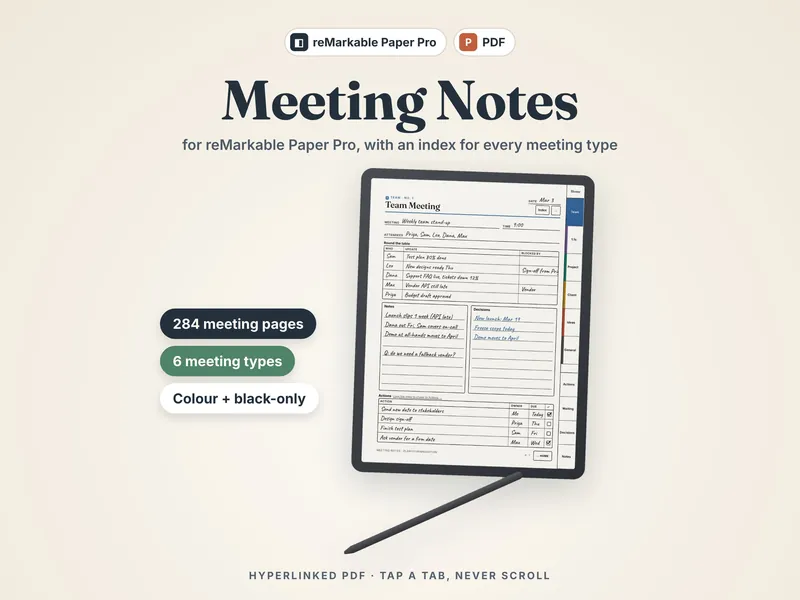
240 numbered meeting pages and an index: write the topic once and find any meeting in two taps.
Which one should you pick?
Write by hand but track on a laptop? Two-Screen Pro pairs the e-ink Work Notebook and Meeting Notes with three spreadsheets: Meeting Command, the Work Task Manager and the Career Wins Tracker. The tablet and the sheets don't sync, so you type the actions in after the meeting.
Have a Kindle Scribe Colorsoft? The Work Notebook for Colorsoft is the same notebook with two color files made for the Colorsoft screen, right- and left-handed, plus the black-only files. You only need one of the two listings.
Want something for the outside too? The Clear Case Inserts for Kindle are 20 printable designs for the back of a clear case, including a 2027 calendar and a 12 books reading goal, sized for the Kindle Scribe, Paperwhite, Colorsoft and the 6 inch Kindle.
Pick the Work Notebook if you want to start today, skip weeks without wasting pages, or keep more meeting notes. It's $12.99.
Pick the 2027 Planner if you like a calendar with the dates already filled in and a year plan at the front. It's $14.99.
Not sure? Get the free sample page below first. It's a real meeting page from the Work Notebook, so you can see how your handwriting and the Scribe's screen look together before you spend anything.
The 2027 Work Planner: dated days, weeks and months, plus meetings, 1:1s and projects.
Using the notebook day to day
Most people use it the same simple way. On Monday, open the weekly plan and write your three outcomes for the week. Each morning, tap the day's tab and write your focus list. In a meeting, tap Meetings, pick the next free number from the index and write the topic there so you can find it later. On Friday, the weekly review asks what got done, what slipped and what's next.
If you manage people, the 1:1 section gives each person their own pages, so the notes from last month are one tap away. And the meeting notes guide has more on keeping actions and decisions in one place.
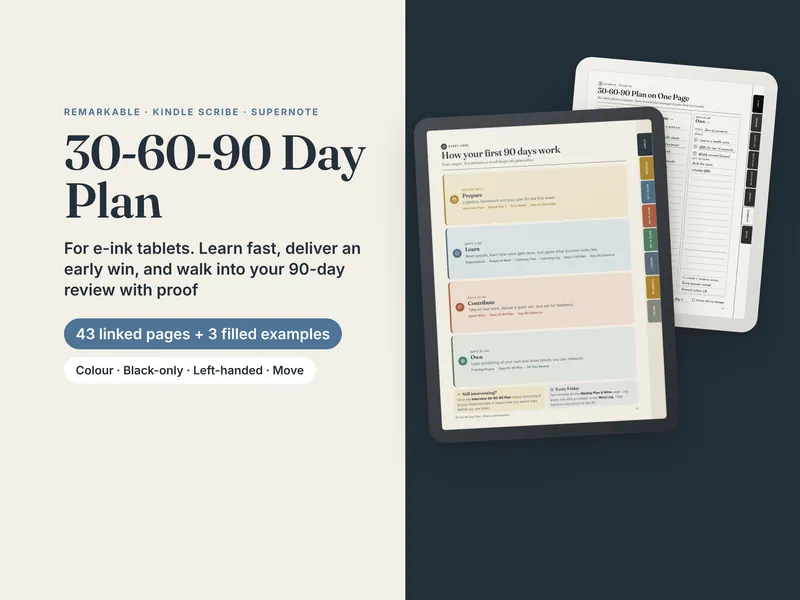
An undated, hyperlinked work notebook for e-ink tablets: 52 weeks of daily focus pages, 240 meeting pages, 1:1 pages for 12 people and 20 project spaces. Now with a color edition for the Paper Pro, and left-handed editions.
A dated, hyperlinked 2027 work planner for e-ink tablets: year, quarter and month plans, a weekly plan, daily pages and a weekly review every week, 160 meeting pages, 1:1s for 10 people and 12 projects. Starts November 2026, so you can use it today.
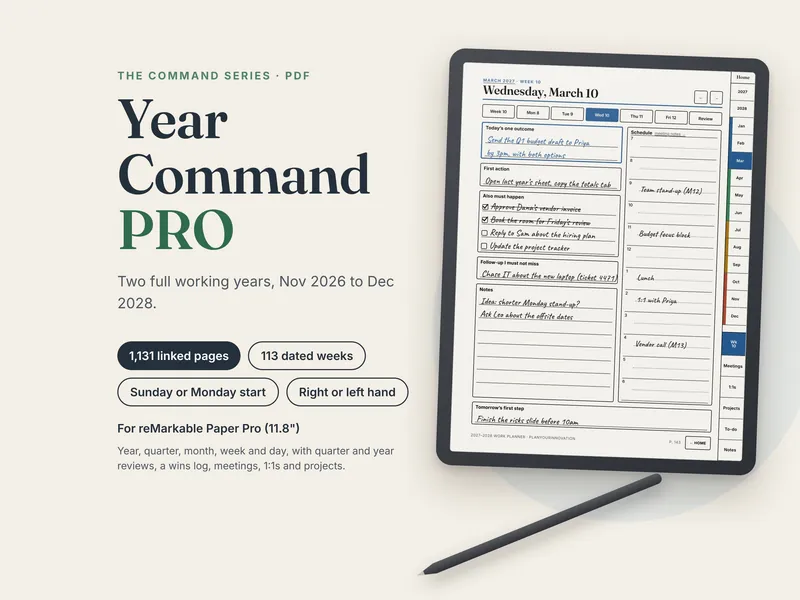
Two full working years, Nov 2026 to Dec 2028, on one hyperlinked PDF of 1,722 pages (about 17 MB): year, quarter, month, week and day pages, a notes page behind every weekday, week scores that roll up into your quarter and year reviews, monthly wins pages, 160 meeting pages, 1:1s for 10 people and 12 projects.
284 hyperlinked meeting pages in six color-coded types (team, 1:1s, project, client, brainstorm and general), each with its own layout and index, plus Actions, Waiting On and a Decision Log.
Not to the Scribe's built-in notebooks, which have a fixed set of page styles. A custom template works as a PDF instead: send it with Send to Kindle, keep it as a PDF, and write on its pages with the pen.
How do I put a PDF planner on my Kindle Scribe?
Use Send to Kindle: the website, the desktop app, the Kindle phone app or email. If you email it, don't put "convert" in the subject, because a converted file can't be written on.
Do the links work on Kindle Scribe?
Yes. Tap a tab, an index number or a link with your finger and the page jumps there. Write with the pen as normal.
Is there a Kindle Scribe planner for 2027?
Yes, the 2027 Work Planner for Kindle Scribe runs from November 2, 2026 to December 31, 2027, so you can start today, and it's fully linked.
Can I add more pages later?
You can't add linked pages to a PDF notebook, so both files come with plenty of pages in each section: 240 meeting pages in the Work Notebook and 160 in the 2027 Planner.
Is there a left-handed version?
Yes. Both downloads include a left-handed file with the tabs on the left side.