What is time blocking?
Time blocking means planning your day as blocks of time, each with one job: "9:00 to 10:30, finish the Q4 forecast" instead of "forecast" on a list. It works because a block forces two decisions a list lets you skip: how long the work will really take, and when you'll do it.
It doesn't mean planning every minute. Most people block their two or three most important tasks, a slot for email and messages, and some buffer, and leave the rest of the day to meetings.
How to time block your workday
- Set up an ideal week once. Mark your meetings, your best focus hours and the times you're never free.
- List the week's tasks with a time estimate for each one, and tick the ones that need a block.
- Place your biggest tasks first, in 60 to 90-minute focus blocks at your best time of day.
- Add one block for email and messages, so they stop eating your focus time, and leave 30 minutes of buffer in the afternoon.
- When the day changes, re-plan instead of starting over. Draw a line at the current time and redraw the rest of the day.
- On Friday, compare planned and actual hours, and change one thing for next week.
Daily time blocking template: what goes on the page
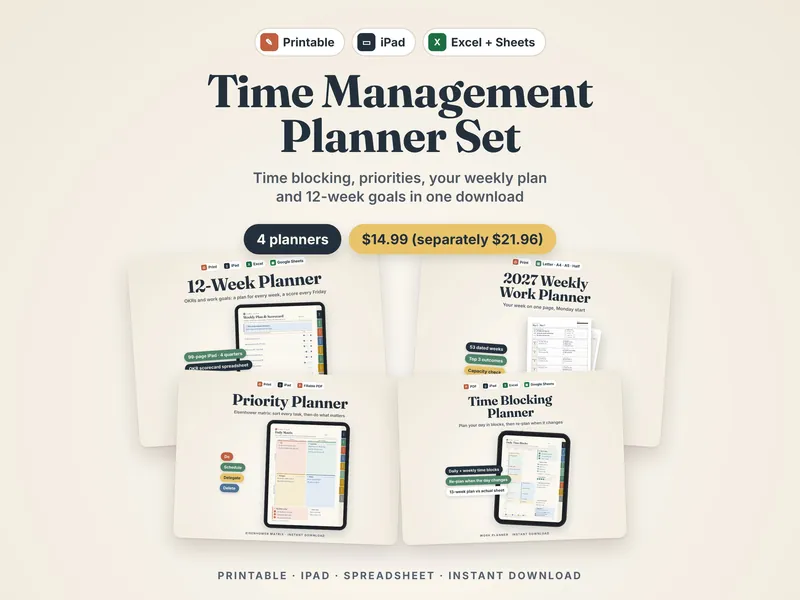
The Time Blocking Work Planner is built around this routine:
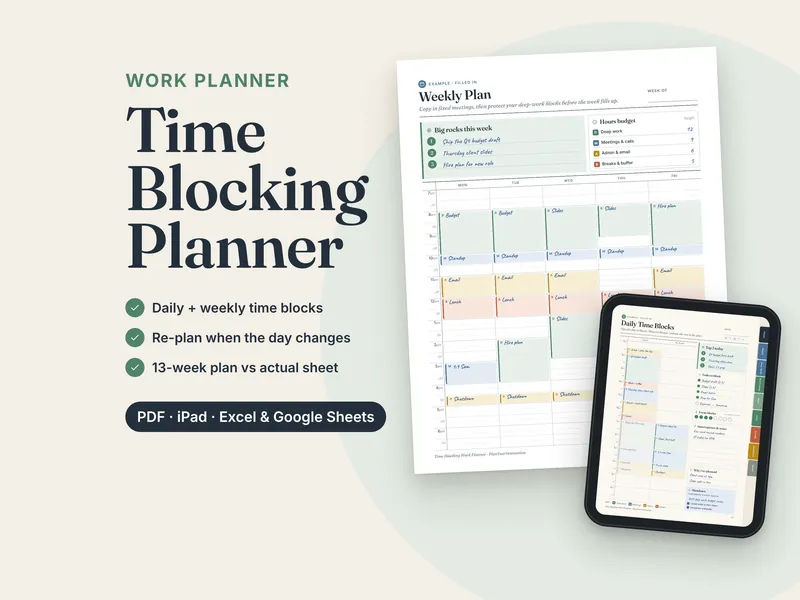
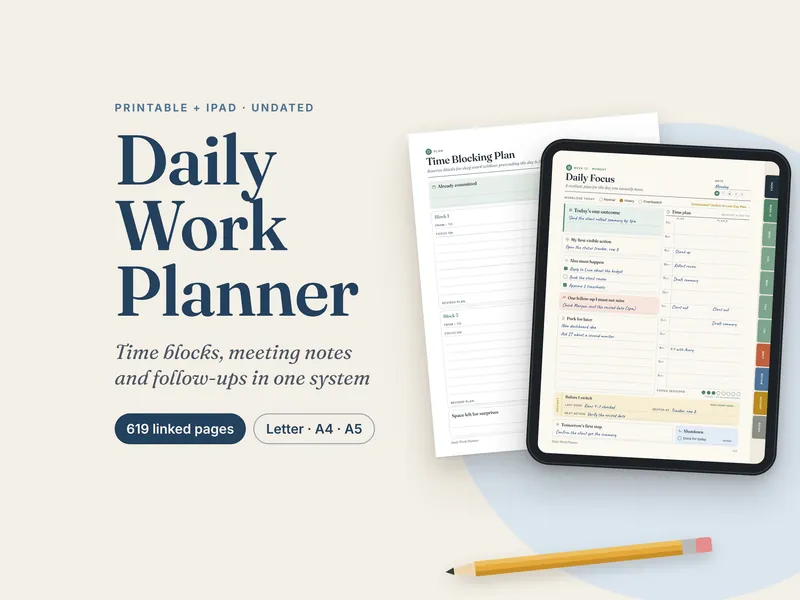
- Daily Time Blocks: 7am to 7pm in 30-minute rows, with a Plan column and a Re-plan column for when the day changes.
- Your top 3, tasks to block, focus-block circles, interruptions and a shutdown box with tomorrow's first block.
- A Weekly Plan on a half-hour grid with an hours budget for deep work, meetings, admin and breaks.
- A Block Bank for every task with a time estimate, and an Ideal Week page.
- A Weekly Review: planned vs actual hours by block type, and one change for next week.
- A blank-hours version for early starts and late shifts, and two filled-in examples.
What problems does the Time Blocking Work Planner solve?
- Your day disappears into meetings and email. Focus blocks go on the page first, so the important work has a time before the calendar fills up.
- One interruption wrecks the whole plan. The Re-plan column lets you redraw the rest of the day in seconds instead of giving up on it.
- Tasks always take longer than you think. The Block Bank's time estimates and the Friday planned-vs-actual check make your estimates more accurate week by week.
- You can't see where your week went. The spreadsheet adds up planned and actual hours for each block type and shows your deep-work share over 13 weeks.
Weekly time blocking planner
Plan the week on Monday, then the day each morning. The Weekly Plan page holds your big rocks and an hours budget, and the iPad version has 13 undated weeks, each with a Block Bank, a Weekly Plan, five daily pages and a review. In the Excel and Google Sheets version, you pick a block type from a dropdown and each row colors itself, then you log what really happened underneath.
Time blocking examples for a meeting-heavy day
- 8:30 to 10:00: Q4 budget, finish the forecast tab (deep work).
- 10:00 to 12:00: team meeting and two 1:1s (meetings).
- 12:30 to 1:00: email and messages (admin).
- 1:00 to 3:00: meetings.
- 3:00 to 3:30: buffer for whatever came up.
- 3:30 to 4:30: write the risks section of the project plan (deep work).
- 4:30 to 5:00: shutdown: write tomorrow's first block.