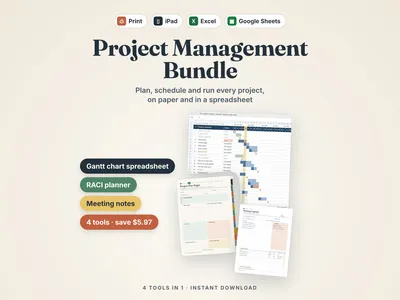
Most projects don't fail because of a missing tool. They fail because nobody wrote down what "done" means, who decides, and what's slipping. I put the Project Management Bundle together so one download covers the whole life of a project: shaping it on paper, scheduling it in a spreadsheet, running the meetings and keeping your own list under control. This spotlight shows what's inside, who it's for, and 12 practical ways to use it, with screenshots from the real files.
Get the Project Management Bundle on Etsy. It's an instant download for Excel, Google Sheets, print and iPad.
A project management template bundle is a set of ready-made pages and spreadsheets for the jobs every project has: deciding the scope, agreeing who does what, scheduling the tasks, tracking risks, running meetings and reporting progress. Instead of building your own tracker the week the project starts, you fill in one that already works.
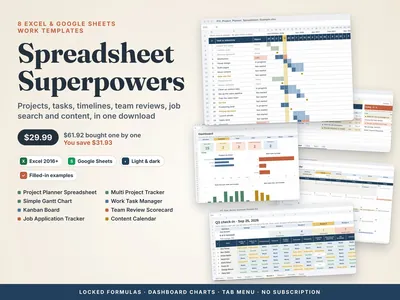
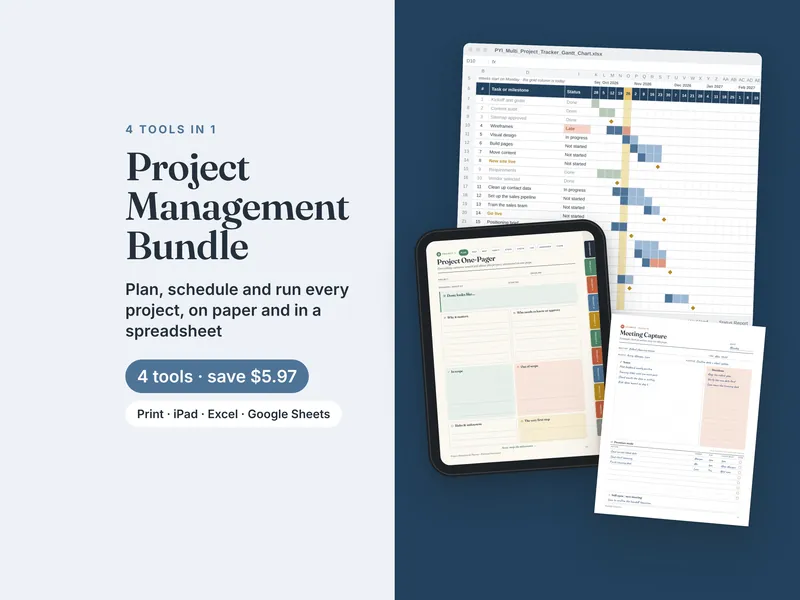
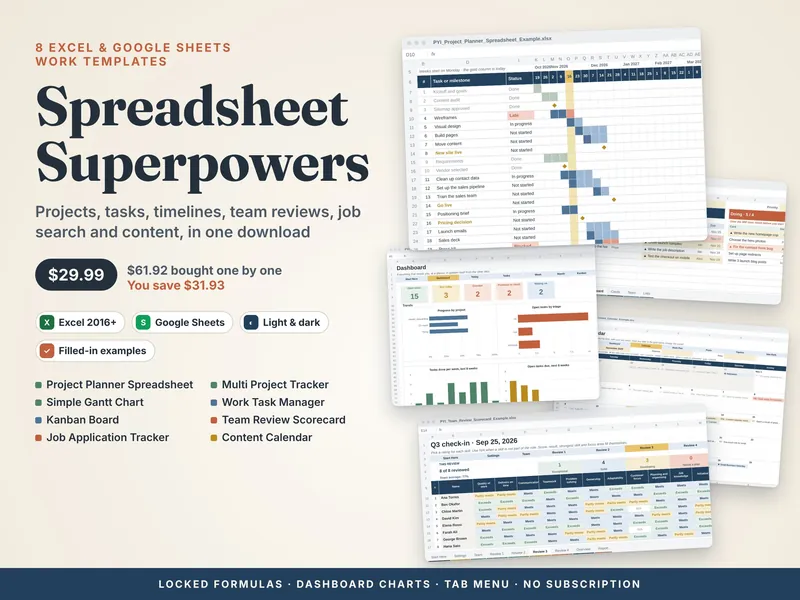
Ours is one download with four tools. Each also sells on its own in the shop, and together they cost less than buying them separately.
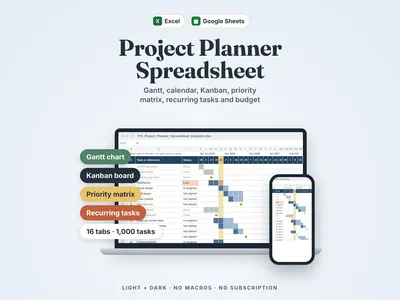
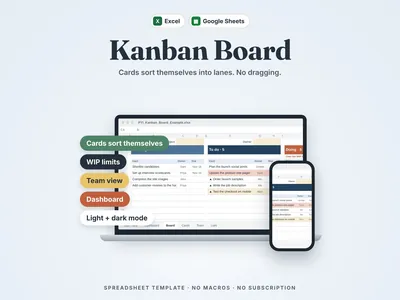
Project Planner Spreadsheet (Excel and Google Sheets): one task list for up to 25 projects and 1,000 tasks that fills in a Gantt chart by week and by day, a Kanban board, a priority matrix, a month calendar, a team workload heatmap, a budget, a risks log, a dashboard and a one-click status report. Light and dark mode.
Meeting Notes & Action Tracker: a Meeting Agenda & Prep page, Meeting Capture with decisions and a promises table, a 1:1 & Recurring Meeting page, a Follow-Through List and Waiting On.
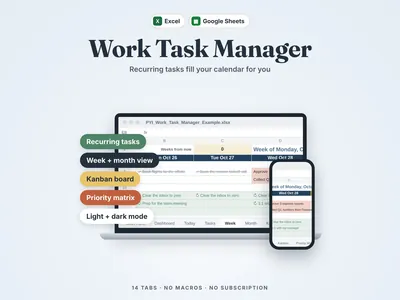
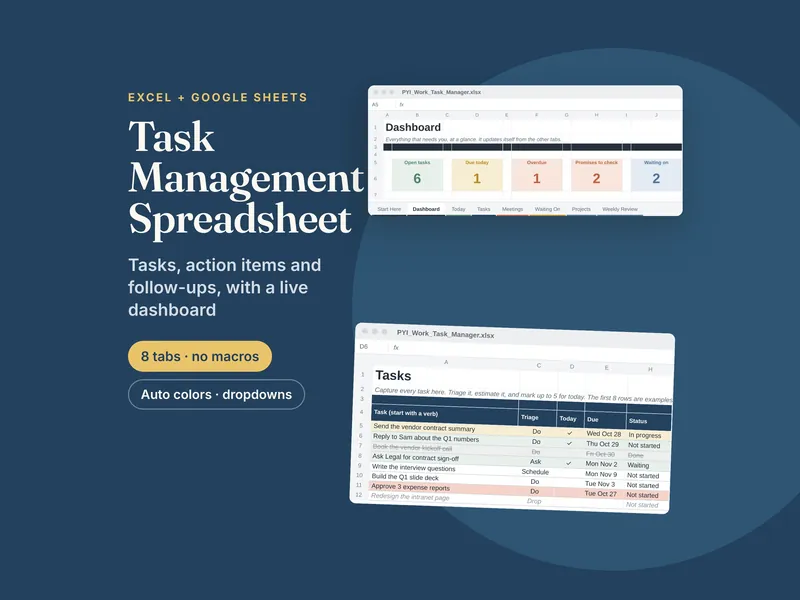
Work Task Manager (Excel and Google Sheets): your own tasks, meeting actions and waiting-on items in one sheet, with a Today list, a week view, a priority matrix and a Coming up panel.
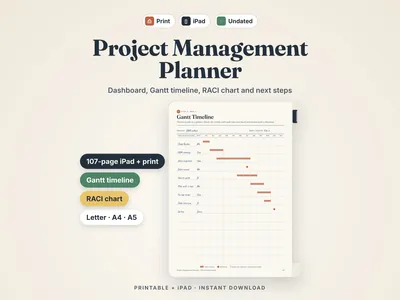
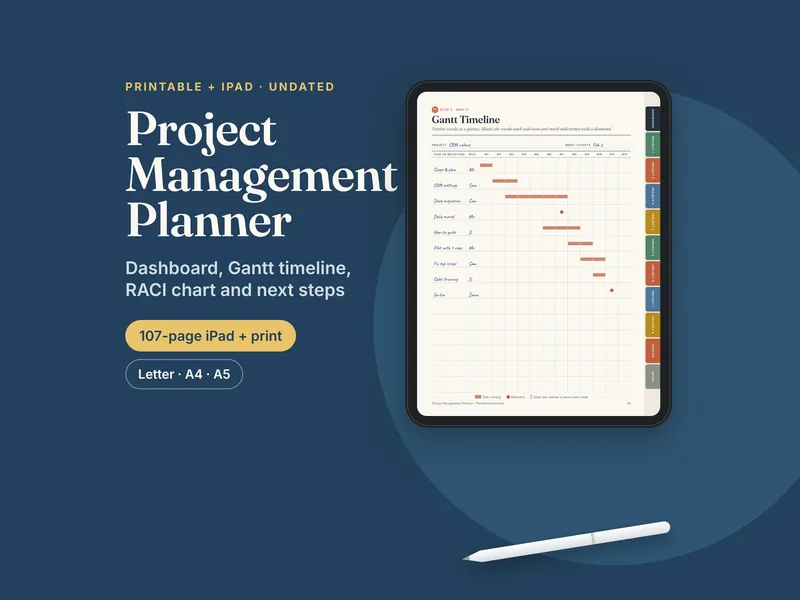
The pages are printable (US Letter, A4 and A5, with a low-ink copy) and fillable on a computer, and there's a hyperlinked iPad planner for GoodNotes and Notability. The spreadsheets have no macros, add-ins or subscription, and each comes with a filled-in example copy so you can see every tab working before you type your own projects.
Who it's for (and who it isn't)
People who run projects without the title: team leads, analysts, coordinators and specialists who've been handed "the project".
New project managers who want a simple system to start from.
Small teams and small businesses juggling a few projects at once with no PM software.
Anyone whose company tools are too heavy for a 6-week project.
It isn't enterprise software. It won't sync with Jira or Asana, send automatic reminders or move every date when one task slips (the dependency check shows you what to adjust, and you stay in control). If you run 50 people across 200 projects, you need a proper system. If you run a handful of projects and want them clear, this is enough.
12 ways to use the Project Management Bundle
Here's how the tools fit into a real project, from the first conversation to the close-out.
1. Shape the project on one page
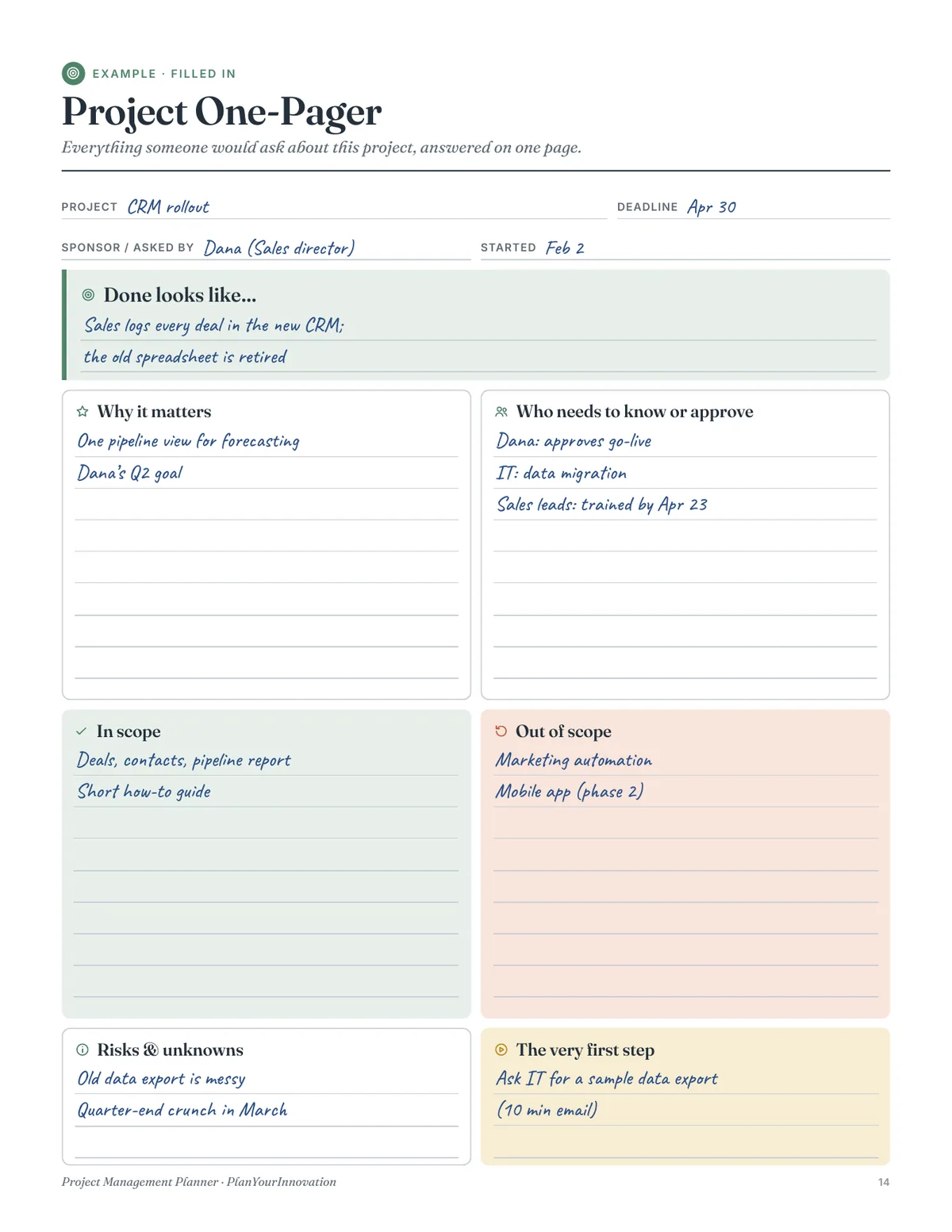
Before any schedule, fill in the Project One-Pager: what done looks like, why it matters, who needs to know or approve, what's in and out of scope, the risks and the very first step. Example: "Done looks like: sales logs every deal in the new CRM; the old spreadsheet is retired." Send it to your sponsor and ask, "Is this right?" Most scope arguments happen here, cheaply, instead of in month two.
A CRM rollout shaped on the Project One-Pager before any schedule exists.
2. Agree who does what with a RACI chart
For each task or decision, mark who is Responsible, Accountable, Consulted and Informed. One A per row. Example: "Data migration · R: IT · A: Sam · C: Finance · I: Sales leads." It takes 15 minutes and saves weeks of "I thought you were doing that".
3. Map the milestones
Use the Milestone Map to list the five to eight moments that matter: requirements signed off, vendor chosen, go-live, training done. Each gets a date and an owner. If you can only explain the project in milestones to your boss, you understand it well enough.
4. Put every task in one list and let the Gantt chart draw itself
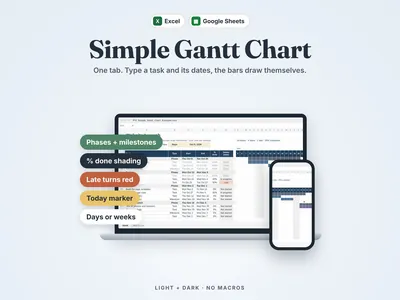
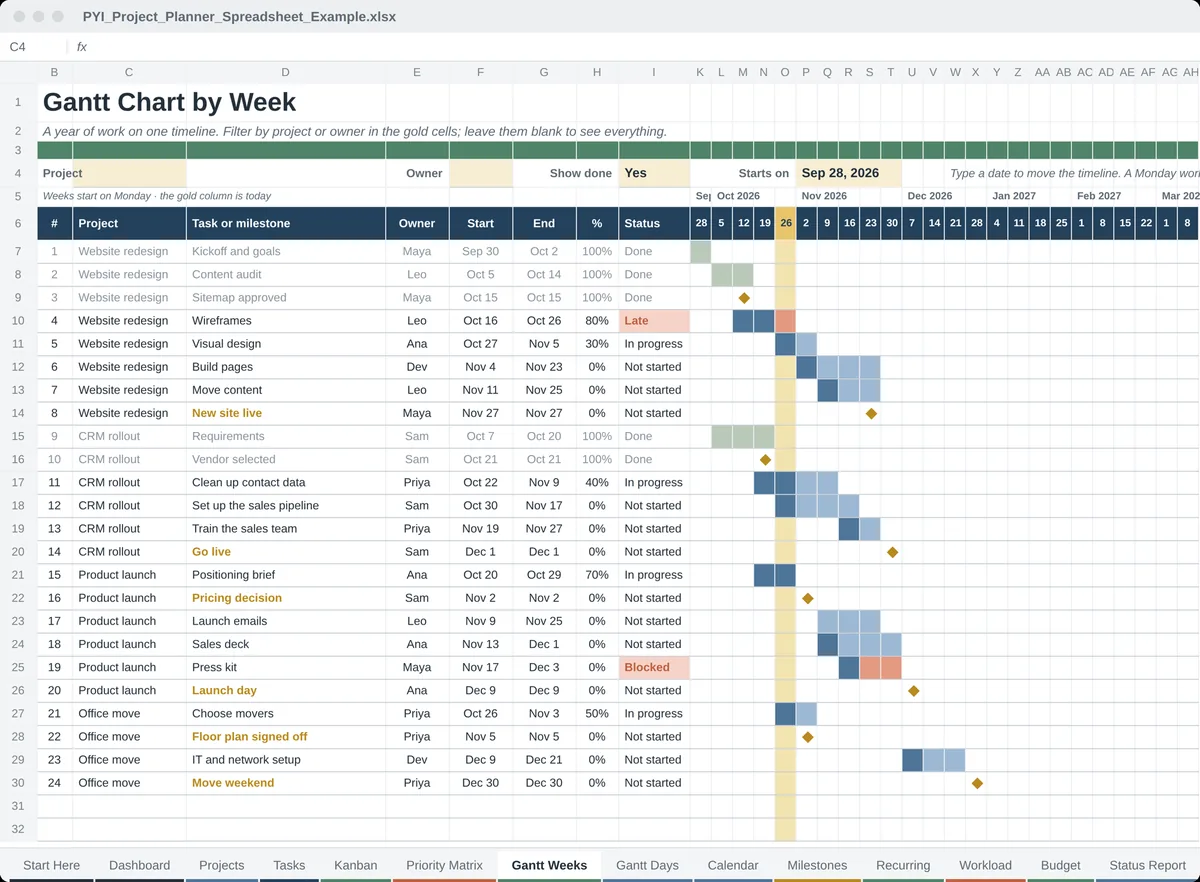
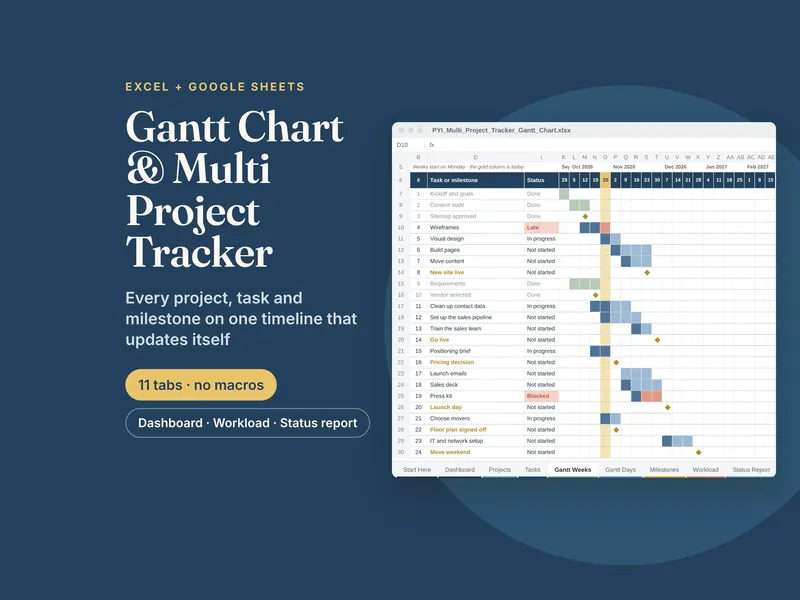
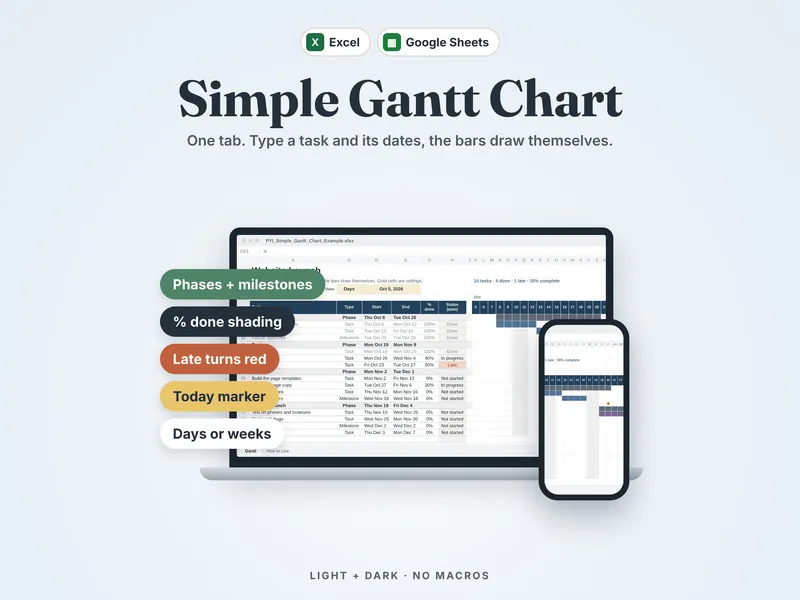
In the Project Planner Spreadsheet, type each task once on the Tasks tab: project, owner, start, end and % done. The Gantt chart by week and by day draws itself, the Kanban cards move, and the status changes to Late or Blocked by itself. Example: "Wireframes · Leo · Oct 16 to Oct 26 · 80%" shows as Late in red the day after it's due.
The Gantt chart draws itself from the task list. Late and blocked tasks turn red.
5. Run several projects at once
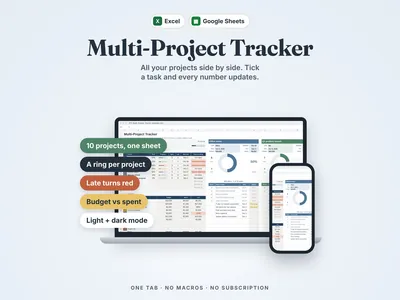
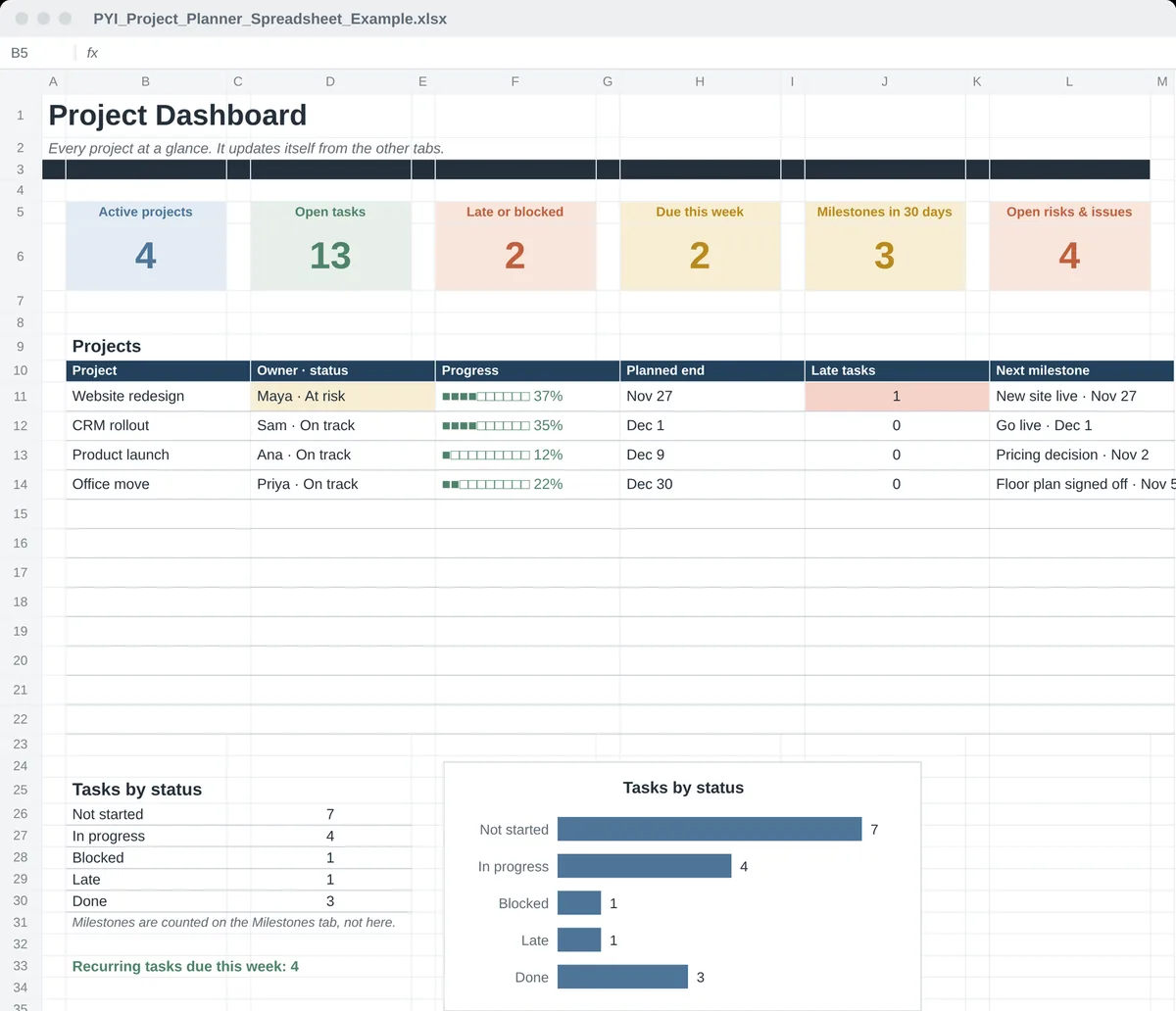
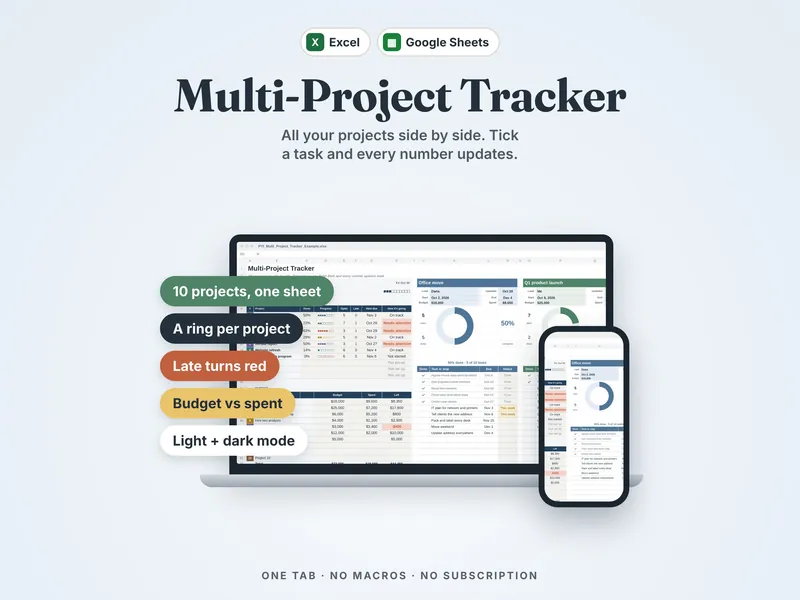
Most people don't run one project. They run three, plus the day job. Add up to 25 projects and filter any Gantt, Kanban or calendar view by project or owner. The Dashboard shows every project's progress, planned end, late tasks and next milestone on one screen.
Every project on one screen: progress, planned end, late tasks and the next milestone.
6. See who's overloaded before they tell you
The Workload tab counts open and late tasks per person and shows a 12-week heatmap of who's busy when. Example: if Priya has 14 open tasks due the same fortnight as a launch, you see it in October, not the week before.
7. Catch a slipping project early
Two checks run quietly in the background. The dependency check warns you when a task starts before the one it depends on finishes, and the date alerts turn any task red when it runs past its project's target end. Example: "New site live · After project end (Nov 25)." That's your cue to talk to the sponsor now, not on launch day.
8. Run project meetings that end with decisions
Plan each meeting on the Meeting Agenda & Prep page: the objective, each item marked inform, discuss or decide, and who owns it. During the meeting, Meeting Capture records decisions and a promises table: action, owner, due date and check-back date. Example: "Approve launch date · decide · Dana · 10 min."
9. Send a status report in five minutes
Pick a project on the Status Report tab and it lists what finished in the last 14 days, what's coming in the next 14, what's late or blocked, the budget and the open risks. Add a two-sentence summary and paste it into an email. Use the Stakeholder Update Plan page to decide who gets which update, and how often.
10. Track risks, decisions and budget in one place
Log risks, issues, decisions and dependencies with an owner, impact, likelihood and due date; the score works itself out. The Budget tab tracks planned against actual spend and turns overspends red. Example: "Page owners slow to review content · Maya · Nov 4 · Risk." When someone asks "Why did we decide that?", the answer is in the log.
11. Keep your own to-do list separate from the project plan
The project plan is for the team. Your own list (emails to send, approvals to chase, promises from meetings) goes in the Work Task Manager. Tick Urgent or Important and it sorts itself into a priority matrix, and the Coming up panel shows what's overdue, today, tomorrow and next week. Every promise from Meeting Capture lands here.
12. Hand over and close out properly
If you move on mid-project, the Project Handover Card gives the next person the status, the open risks, the people and the next step on one page. At the end, the Close-Out & Retro page asks what went well, what didn't and what you'd do differently. Ten minutes there makes the next project noticeably easier.
What a normal week looks like with the bundle
Monday, 10 minutes: update % done on the Tasks tab, check the Dashboard and the Workload heatmap.
Before each project meeting: fill in the Agenda & Prep page and share it.
After each meeting, 2 minutes: move your promises into the Work Task Manager.
Thursday or Friday, 5 minutes: send the status report from the Status Report tab.
Whenever something changes: one line in the Risks & Issues log.
That's about 20 to 30 minutes a week per project. In return, nobody has to ask you for an update, slipping dates show up while there's still time to fix them, and your status reports write themselves. Our guide on how to plan your work week shows how to fit project work around the rest of your calendar.
Paper, iPad or spreadsheet: which should you use?
Use both, for different jobs. Paper (or the iPad planner) is better for thinking: shaping the project, the RACI conversation, the retro. The spreadsheet is better for tracking: dates, status, workload and reports. Many people print the One-Pager and RACI for the kick-off meeting, then live in the spreadsheet for the rest of the project.
What problems does the Project Management Bundle solve?
The Project Management Bundle covers the problems that sink most small projects. Here's what it fixes:
The problem: nobody agreed what "done" means, so scope keeps growing. How it helps: the Project One-Pager gets done, scope and the first step agreed with your sponsor before any schedule.
The problem: "I thought you were doing that." How it helps: the RACI Chart gives every task one accountable owner, agreed at kickoff.
The problem: a slipping date is noticed on launch day. How it helps: in the Project Planner Spreadsheet, late tasks turn red, and the dependency check warns you when a task starts before the one it depends on.
The problem: one person is quietly overloaded. How it helps: the Workload tab shows open and late tasks per person and a 12-week heatmap of who's busy when.
The problem: status reports take an hour. How it helps: the Status Report tab lists what finished, what's next, what's late, the budget and open risks for any project.
The problem: meetings end and nobody remembers what was decided. How it helps: Meeting Capture records decisions and promises, and the Work Task Manager keeps your own follow-ups in one sorted list.
Yes. Open the Start Here PDF and tap "Make my copy" to get your own Google Sheets copy. No copy button? Upload the .xlsx to Google Drive, open it, then choose File > Save as Google Sheets. Both spreadsheets work in Excel 2016 or later, Excel for Mac, Excel for the web and Google Sheets, with no macros.
How many projects can it handle?
Up to 25 projects and 1,000 tasks and milestones in the Project Planner Spreadsheet, which is about 20 tasks a week for a full year.
Can my team use it?
Yes, for your own team's projects. Share the Google Sheets copy with your team so everyone updates the same task list.
Is it dated?
No. Everything is undated, so it works for any project in any year.
How do I get the files?
It's an instant download from my Etsy shop. Download it from Etsy's Purchases page on a computer or web browser, because the Etsy app can't download digital files.

 By