Project tracker template for Excel and Google Sheets
A project tracker spreadsheet is one list of tasks, each with an owner, a due date and a status, that shows you what's late and what's next. You can build one in an hour, or start from a template that already draws the Gantt chart and Kanban board for you. Here's how to set one up either way.
Works on your device, or I'll fix it or refund you in full.
How to set up a project tracker spreadsheet
These steps work in Excel and in Google Sheets. Start small: a tracker you update every week beats a big one you stop opening.
Need more than a tracker? See all our project management templates: a RACI chart, a project charter one-pager and a status report.
Make one row per task. Add columns for Task, Project, Owner, Start, Due, % done and Status. Keep every task on one sheet, even when you run several projects.
Make Status a dropdown. Use Data validation with five choices: Not started, In progress, Blocked, Done and Late. A dropdown keeps the words the same, so you can filter and count them.
Flag late work automatically. Add a conditional format that turns a row red when the due date is before today and % done is under 100.
Add a summary at the top. Count tasks by status with COUNTIF, and show what's due this week. This is the bit you'll read in your Monday check.
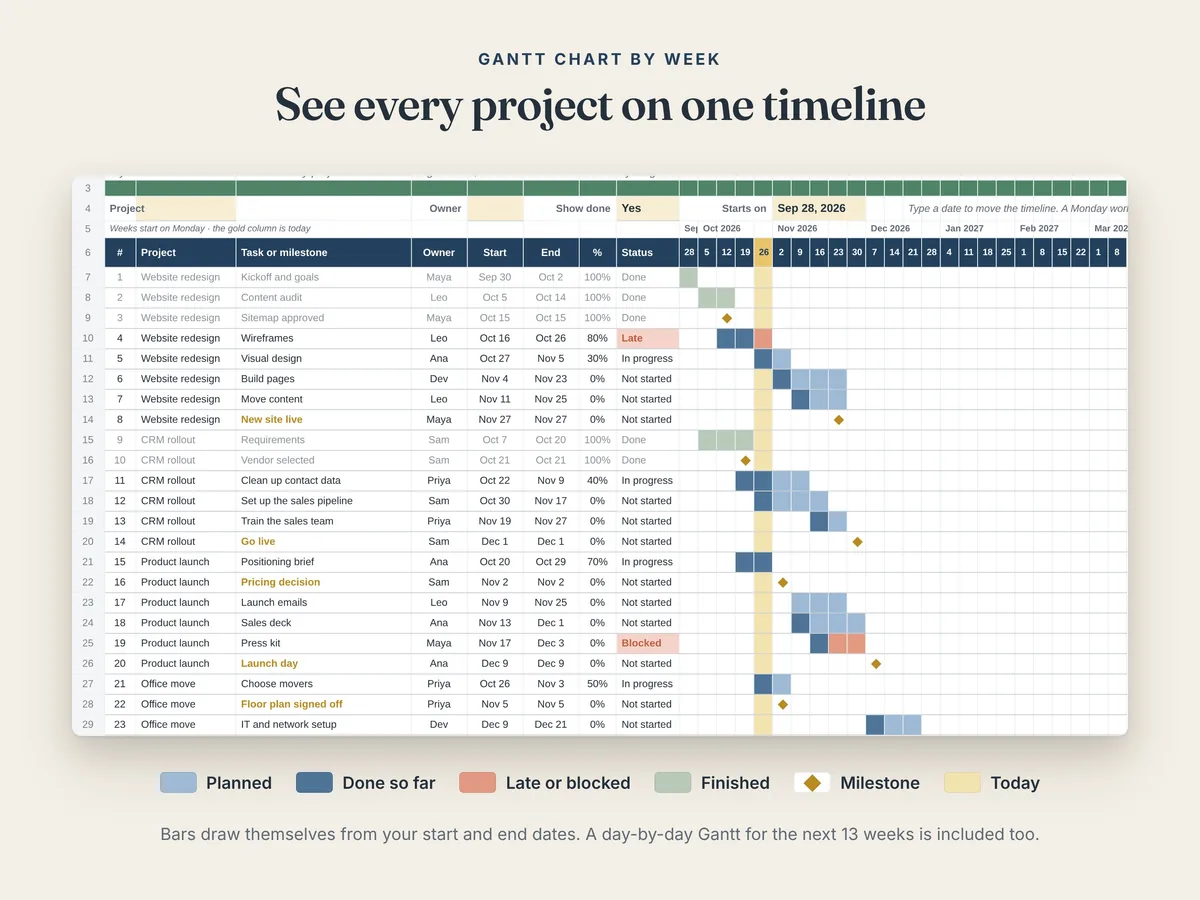
Add views when you need them. A Gantt chart shows the timeline, a Kanban board shows the flow of work, and a multi-project view shows how every project is going side by side.
Update it once a week. Set a 15-minute slot on Friday to update % done and dates. Then the project status report takes minutes, not an afternoon.
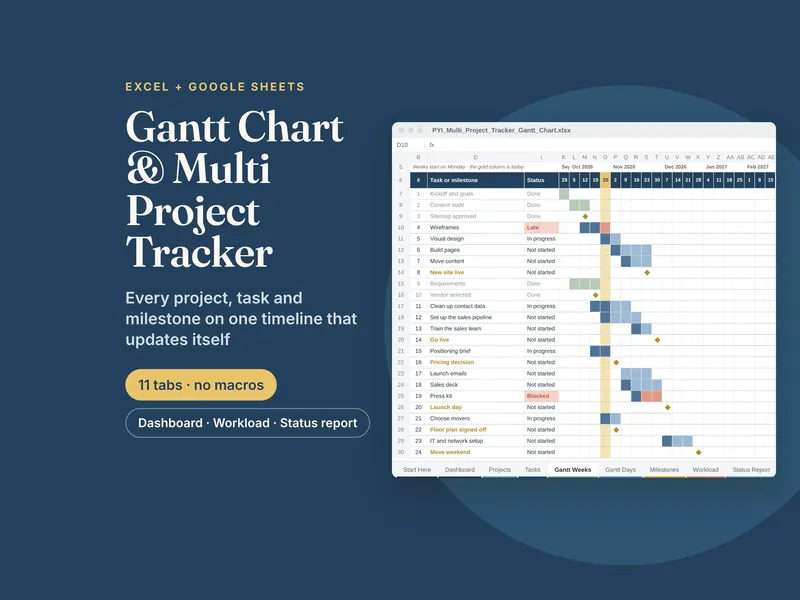
The Project Planner Spreadsheet: one task list, and the Gantt chart draws itself.
Project tracker in Excel or Google Sheets?
Both work. Excel is better if your team lives in Microsoft 365 or you work offline a lot. Google Sheets is better for sharing a live tracker with people outside your team, and for editing together on a call. My spreadsheets are built to work in both, with no macros or add-ins, so you can switch later. In Excel, just open the .xlsx file. For Google Sheets, open the Start Here PDF and tap "Make my copy" to get your own copy. No copy button? Upload the .xlsx to Google Drive, open it, then choose File > Save as Google Sheets.
Kanban board in Google Sheets
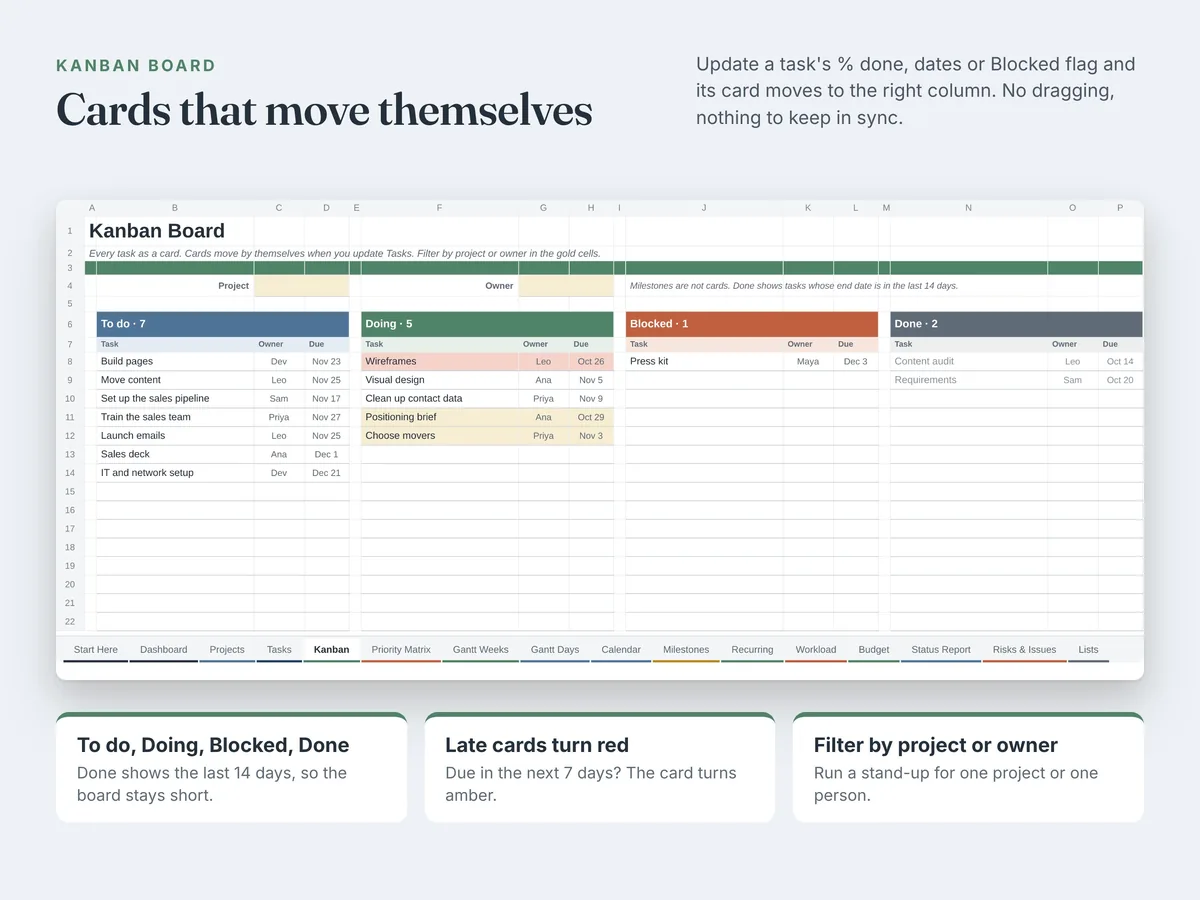
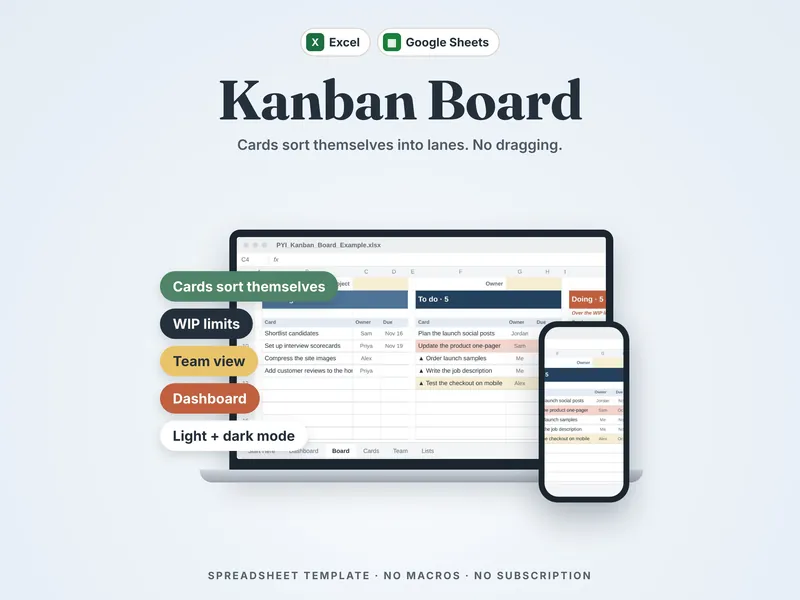
A Kanban board shows each task as a card in a column: To do, Doing, Blocked and Done. In a spreadsheet the simplest version uses your Status column: each column of the board is a FILTER of the task list by status. Change a task's status and its card moves. The Kanban Board Spreadsheet does this for you, with WIP limits that warn you when too much is in progress, stand-up filters by project, person or priority, and a dashboard.
Update a task's % done or status and its card moves. No dragging.
Tracking more than one project
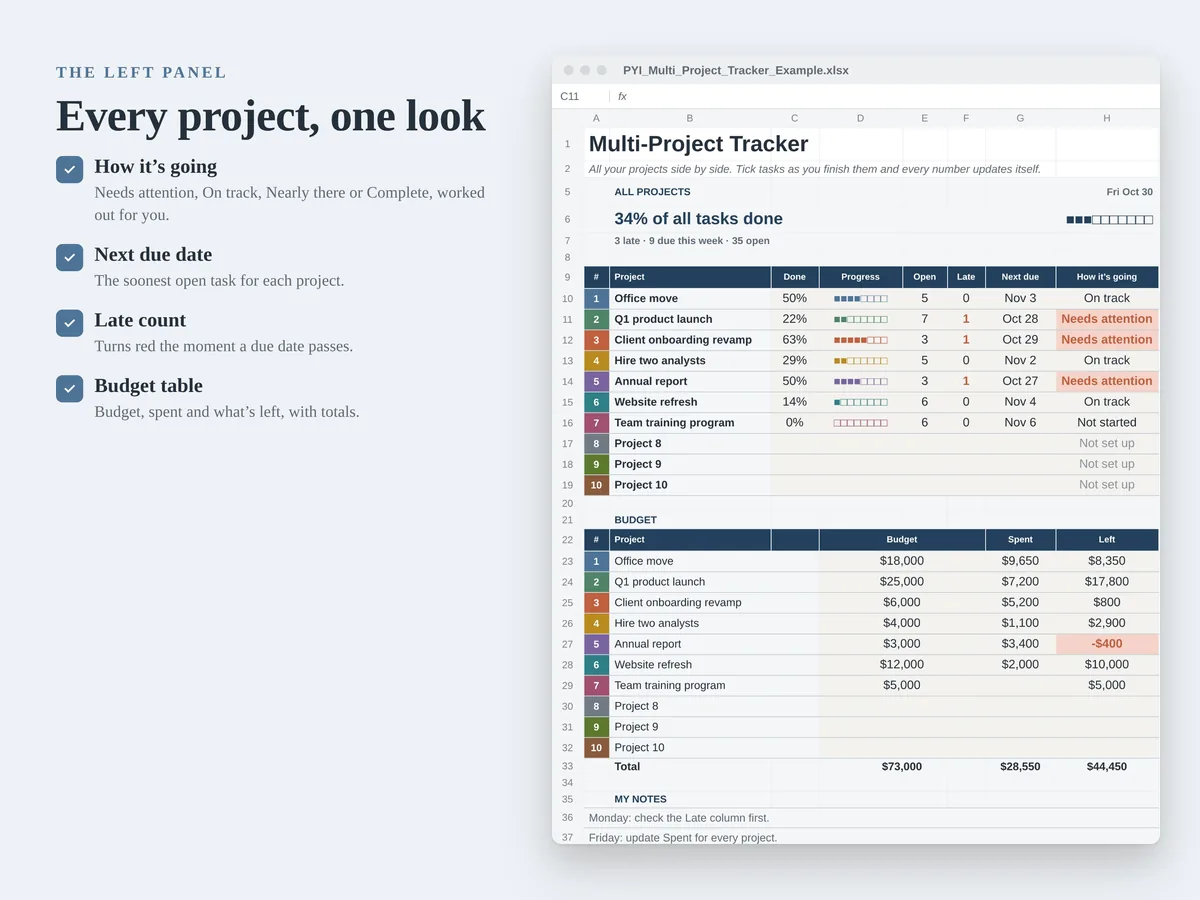
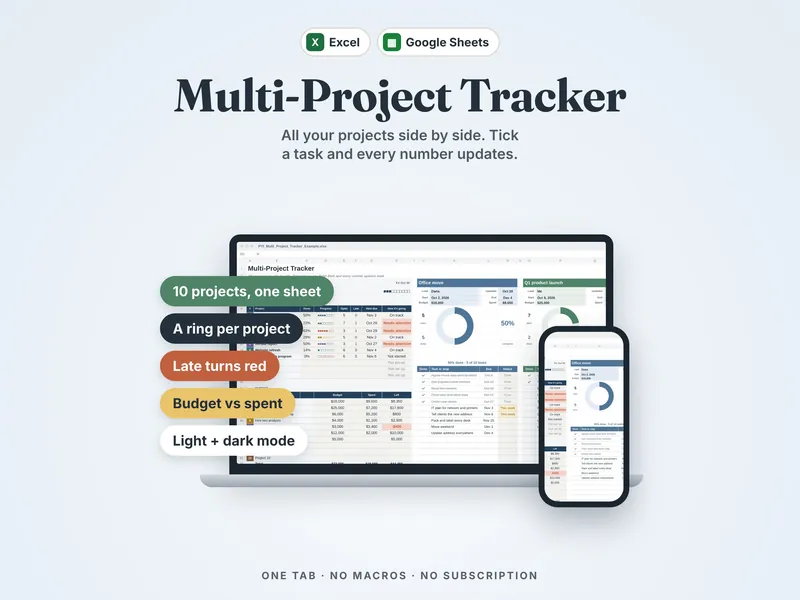
When you run several projects at once, you need one place that shows them all. The Multi-Project Tracker puts up to 10 projects side by side on one sheet. Tick a task when it's done and the progress rings, late flags, budget and status summary update themselves. There are no tabs to learn. For a bigger portfolio, the Project Planner Spreadsheet handles up to 25 projects and 1,000 tasks.
The Multi-Project Tracker: every project, one look.
Project tracker templates compared
Project Planner Spreadsheet, $12.99: the full system. One task list runs a Gantt chart, month calendar, Kanban board, Eisenhower matrix, recurring tasks, budget, dashboard and status report. 16 tabs.
Multi-Project Tracker, $6.99: up to 10 projects on one sheet, with progress, late flags and budget.
Kanban Board, $5.99: cards that sort themselves into lanes, with WIP limits and stand-up filters.
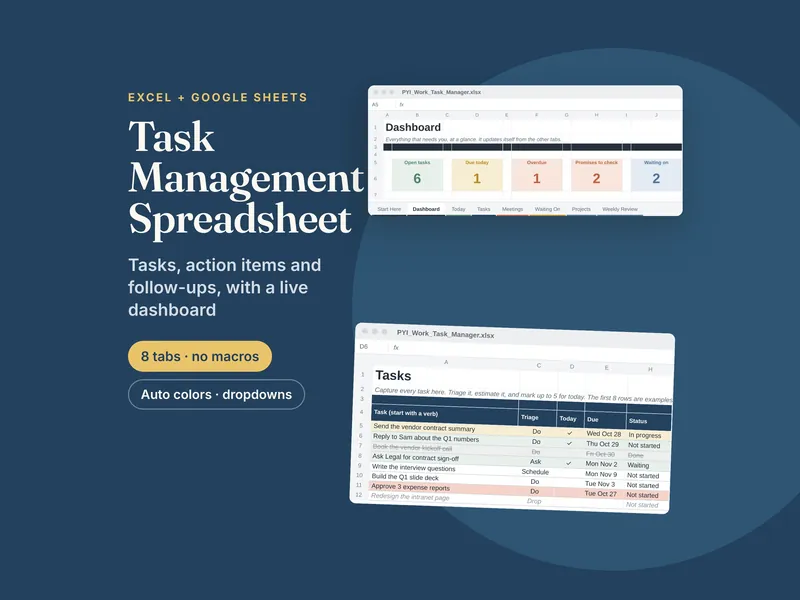
Work Task Manager, $6.99: your own task list rather than a team project. Each task lands on a Today list, week view, month calendar, Kanban board and priority matrix. 14 tabs.
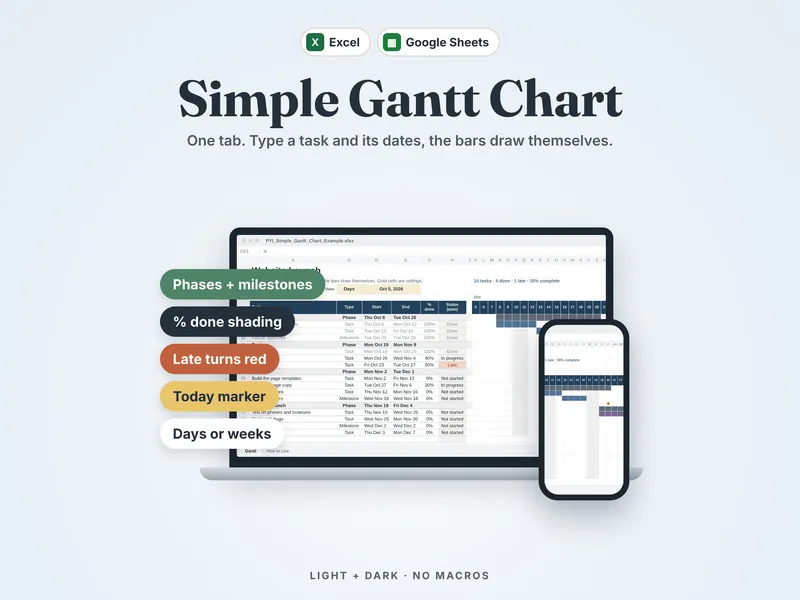
Simple Gantt Chart, $5.99: one project timeline on one tab. Type a task, its dates and % done, and the bars draw themselves. See the Gantt chart guide for more.
Which one should you pick?
If you're tracking one project with a few people, start with the Simple Gantt Chart or the Kanban Board. If you juggle several projects and report on them, the Multi-Project Tracker is the quickest to keep up to date. If you run a whole program with dependencies, budget and a status report, get the Project Planner Spreadsheet. And if you want the planning pages too, the Project Management Bundle has four tools in one download: the Project Planner Spreadsheet, a printable project planner, meeting notes pages and the Work Task Manager.
What should a project tracker spreadsheet include?
At least a task, project, owner, start date, due date, % done and status for every task, plus a summary of what's late and what's due this week. A Gantt chart and Kanban board are useful views on the same list.
Is there a project tracker template for Google Sheets?
Yes. All five spreadsheets here work in Google Sheets and Excel, with no macros or add-ins.
How do I make a Kanban board in Google Sheets?
Give every task a Status column, then make each board column a FILTER of the task list by status. When you change a task's status, its card moves. The Kanban Board Spreadsheet is ready-made.
Can I track multiple projects in one spreadsheet?
Yes. Keep every task on one sheet with a Project column, then summarize by project. The Multi-Project Tracker shows up to 10 projects side by side.
Excel or Google Sheets: which is better for a project tracker?
Both work well. Google Sheets is easier to share and edit together; Excel suits Microsoft 365 teams and offline work. These templates work in both.
How often should I update a project tracker?
Once a week is enough for most projects. Fifteen minutes on Friday to update % done and dates keeps it honest.